Free PDF Converter
or drop it here
Learn about Canva’s upload formats and requirements. See how we use your content in our Privacy Policy.
Convert files to PDFs without changing the content or compromising quality. With Canva’s online PDF converter, you can freely convert your DOCX, PPTX, and JPG files to PDF and more for easy sharing and download. Or convert your PDFs into editable Canva designs.
Try these document editing tools
Edit, convert, translate PDFs and more. All the PDF editing tools you need!
How to convert files to PDF
1
Upload your file
Select the “Upload your file” button or easily drag and drop your files into the section.
2
Edit your design
Make some quick touch-ups on your image or file using our beginner-friendly editor.
3
Download your PDF
Finally, convert your file by downloading it as a PDF.
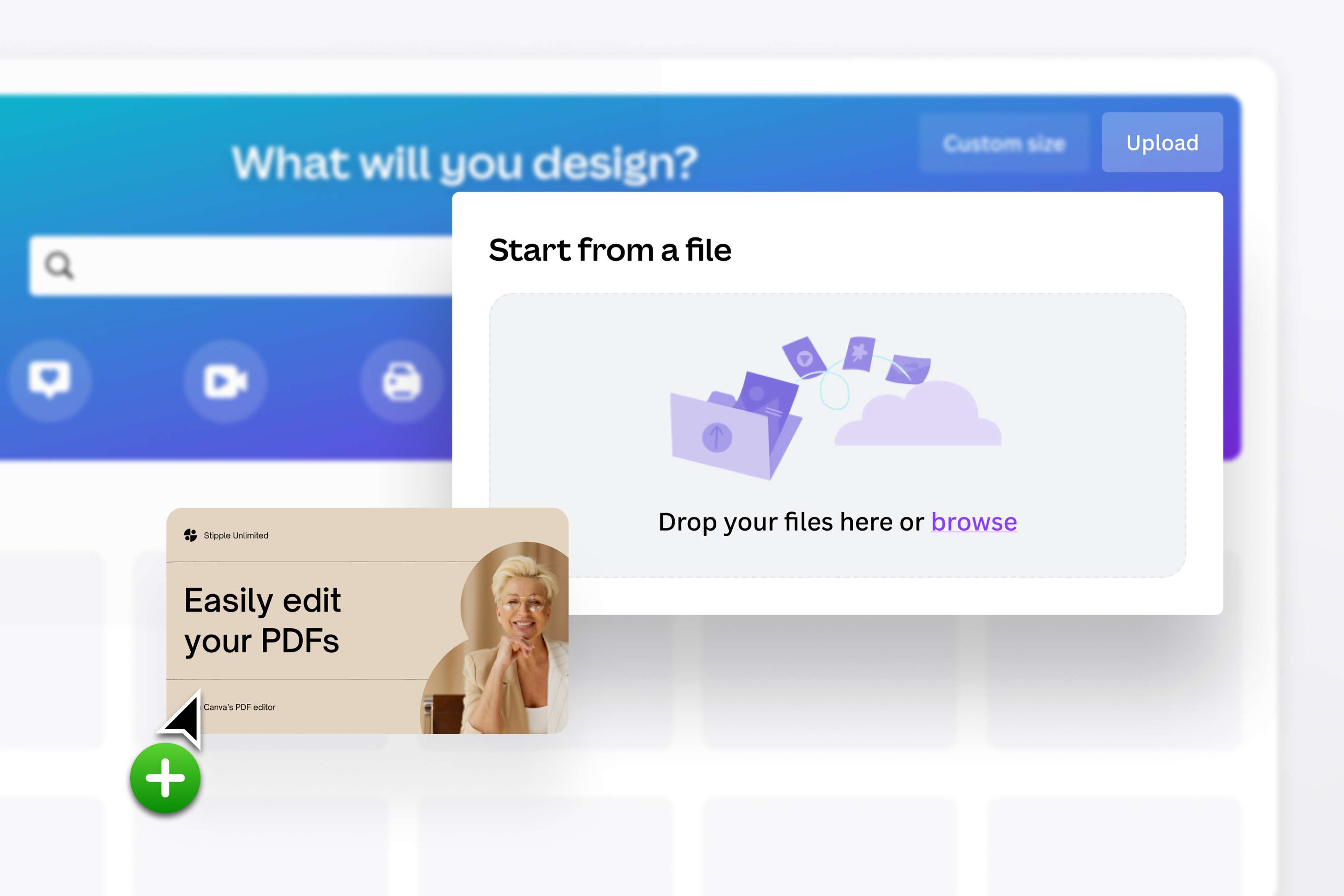
Convert PDF documents to other file types
Upload your PDFs and convert them into editable Canva files that you can share as a link, publish as jpg, PPTX, or republish as a PDF. Simply launch the Canva homepage and import your media from your device. From there, change your designs or extract embedded images from your PDF files and turn them into high-quality pictures, ready for uploading and publishing.
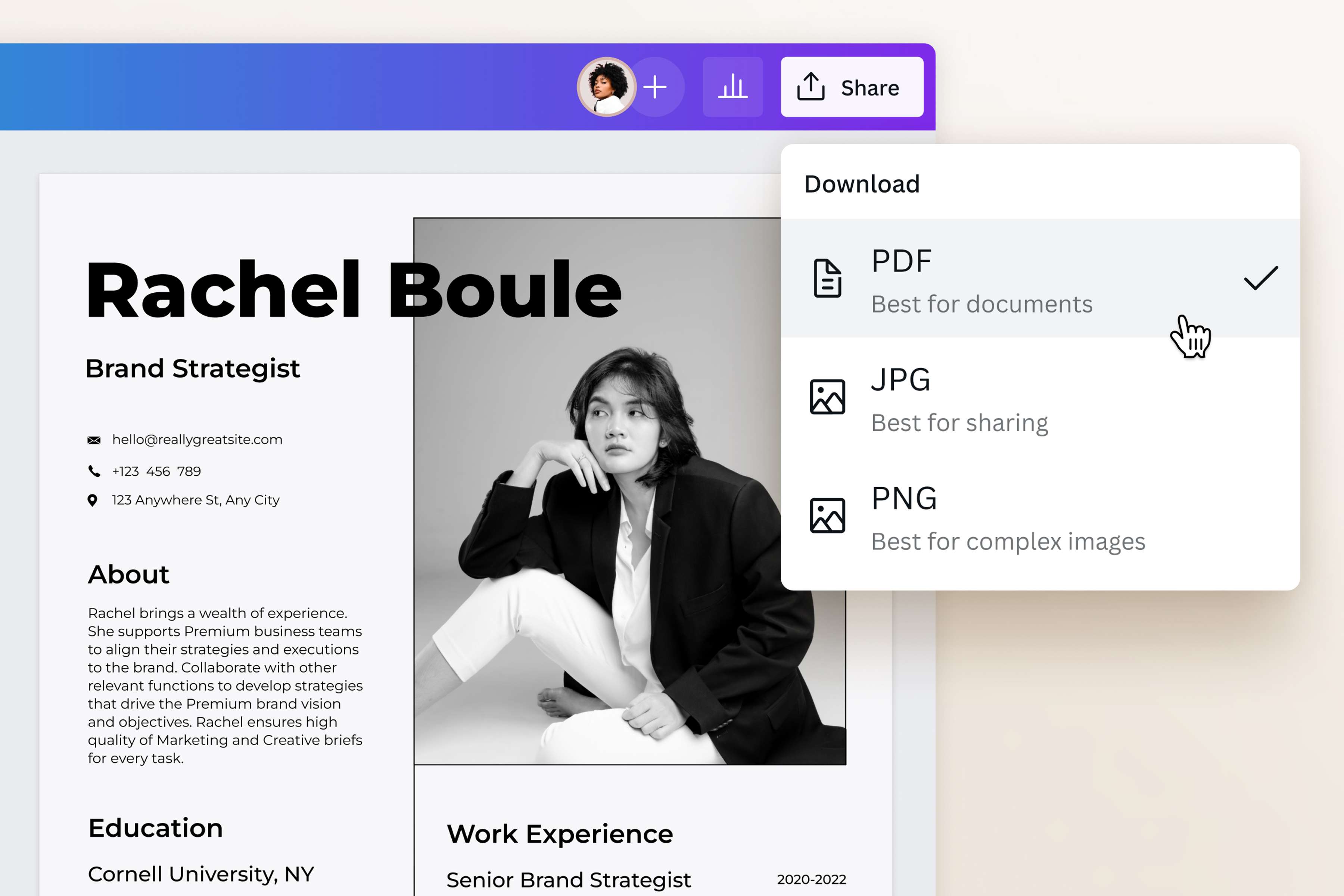
Make your files easy to view and share
Different operating systems and software programs can add stress to any project requiring plenty of correspondence. Ensure that every detail of your work remains intact and viewable by converting jpg or other files to PDF before emailing them. Not only will the reduced file size make it easier to share, but they’ll also be easy to open across various devices. Use the short link generator on Canva to instantly create a custom short URL you can seamlessly integrate into any design.
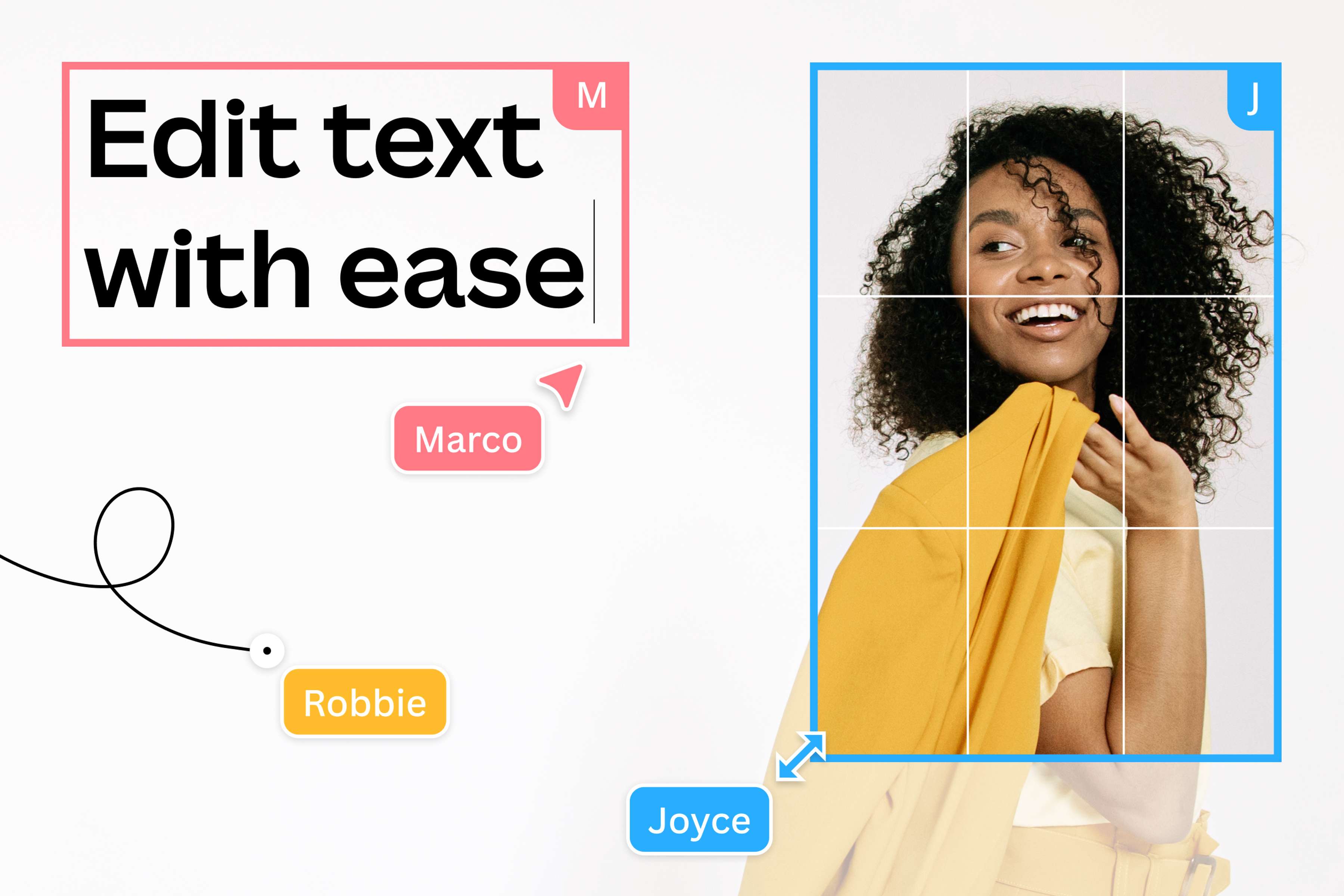
Upgrade your layouts with creative details
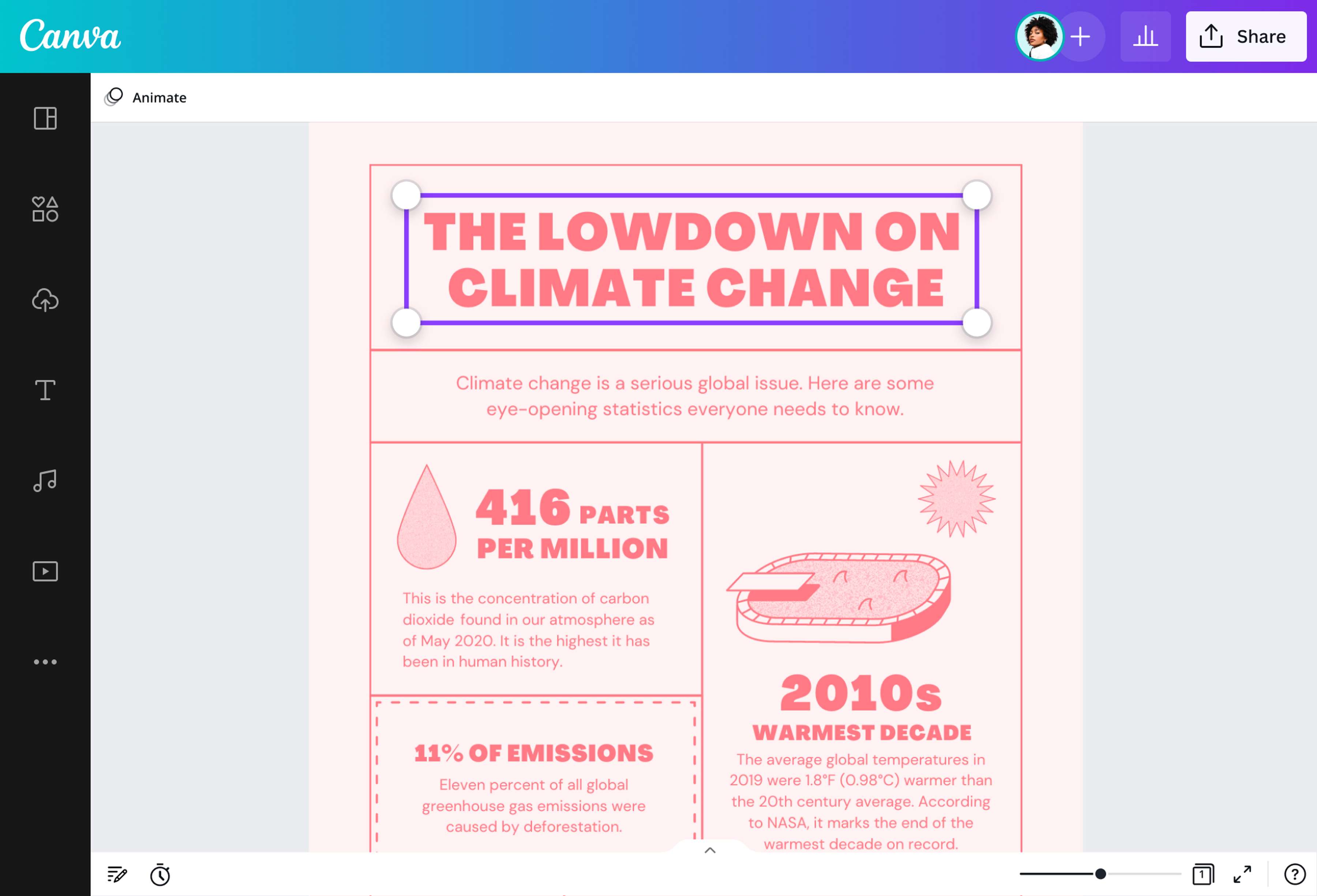
File size concerns can hinder your creativity when designing reports and presentations. Sharing as a link through Canva or converting your file to PDF allows you to let loose your artistic vision without creating huge files. Add images and other visual flourishes in reports. Use typography to make your text more compelling to read. Share directly or save your final creation as a PDF and have confidence that it will keep its superior resolution even with a small file size.
How to convert jpg or other image files to PDF
Launch Canva
Open Canva using the app or a web browser. Log in to your account to access our easy-to-use converter for PDF.Upload your file
Click “Upload” or use the drag-and-drop method to import the photo, document(opens in a new tab or window), or file you want to convert to PDF. This takes you to our online editor.Customize or edit away
Enhance or make changes to your file if desired. Edit the content, crop or resize the images, or add photo effects. You can also add text boxes, color blocks, and other graphic elements from our media library to take your file to the next level.Convert the file to PDF
Once you’re finished customizing your layout, click Share then Download to convert your image or file to PDF. Select “PDF Standard” if you intend to share your file through email or “PDF Print” for printing.Share your PDF
You can now share your freshly converted PDF online. Attach it to emails, send it out for printing, or save it in cloud folders without worrying about large file sizes.
Frequently asked questions
- Our online PDF converter is completely free and easy to use. Convert to PDF or convert AI to PDF, XLSX to PDF, and other file types in just a few clicks. Need to convert AI files to other formats? We've got you covered. Turn any file into your chosen format, customizing it to your needs while maintaining quality. Whether you're looking to edit or modify a file or sign PDFs or merge documents, our free PDF converter has all the tools you need to transform your images and layouts with ease.