Extract your signature from an image
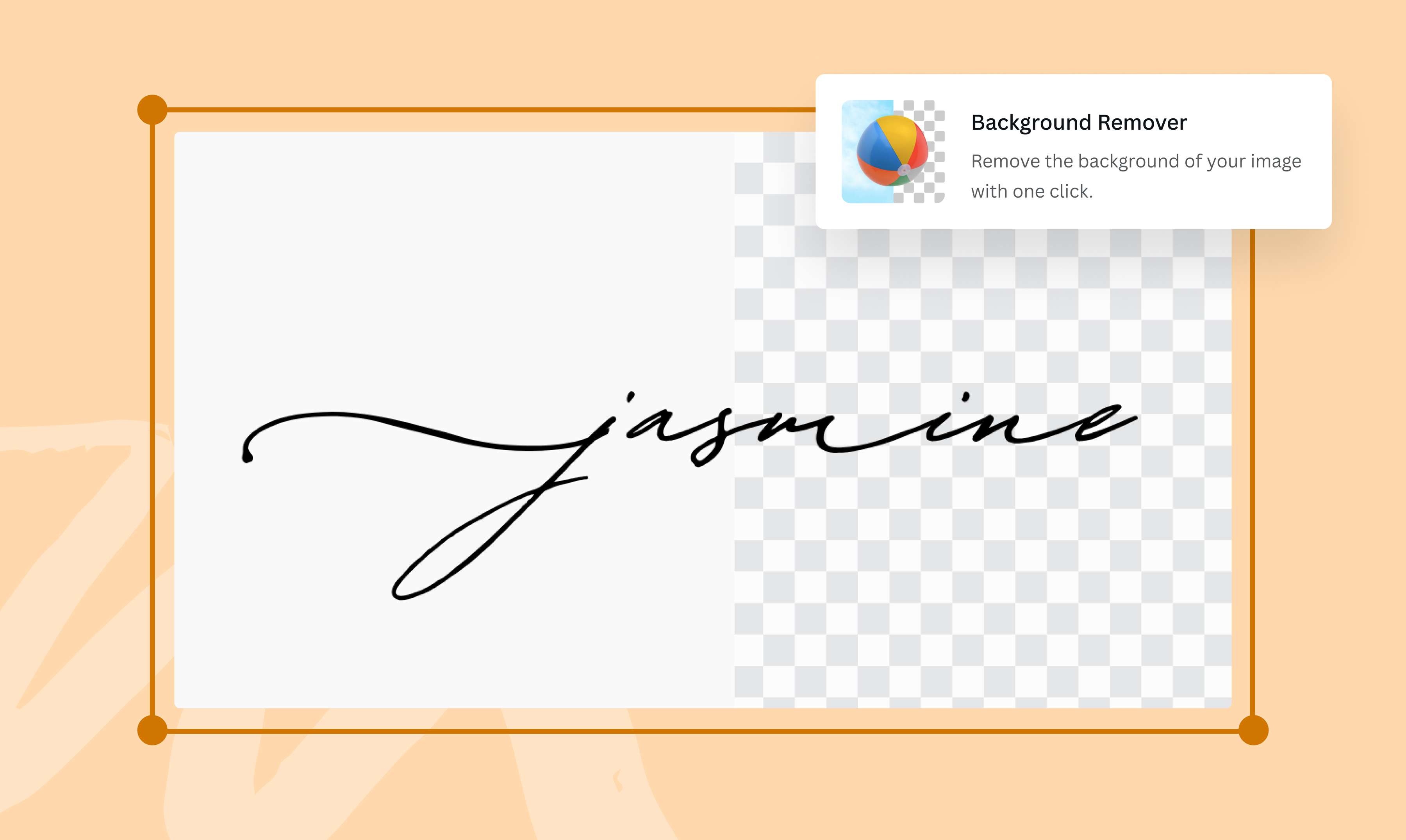
With Canva’s Background Remover (Pro), turn a handwritten signature into an e-signature in one click. Perfect for attaching signatures to formal documents, contracts, and agreements. Try it once for free.
or drop it here
Learn about Canva’s upload formats and requirements. See how we use your content in our Privacy Policy.
How to remove the background from a picture
1
Upload your signature
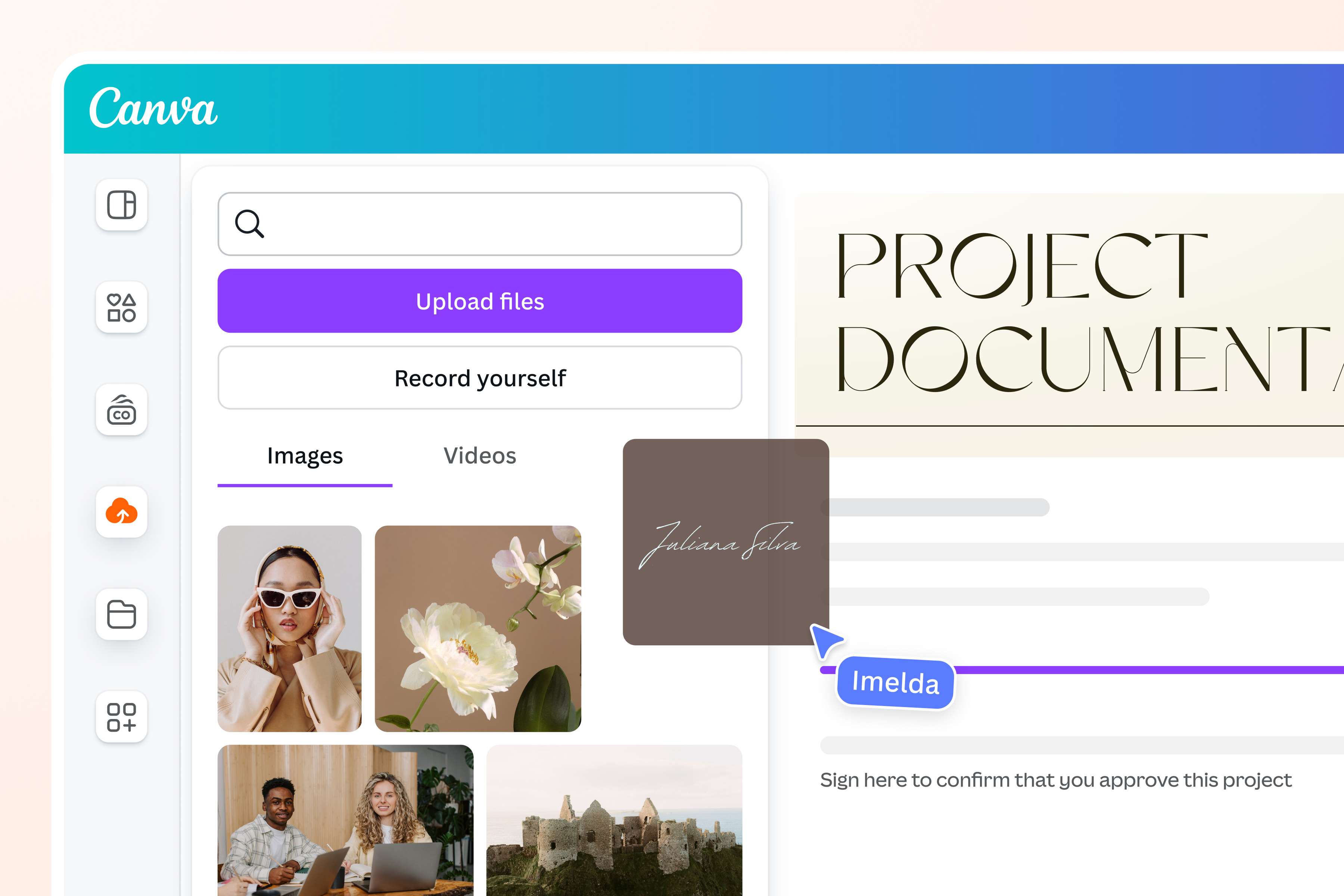
Select the “Upload your image” button or easily drag and drop your files into the section.
2
Remove the background
Click on the photo and select “BG Remover”. Make some quick touch-ups to your image using our editor.
3
Download your signature
Finally, download your signature as a JPG or PNG file.
A fast, simple, and online signature extractor
There’s no need to download software or struggle with manual editing just to attach an e-signature. Our Background Remover (Pro) lets you remove the background from a signature online in a few easy steps. Simply upload your image, click Edit, and select BG Remover. Instantly, you’ll be left with a transparent background signature that’s ready to use in any design or document.

Polish your e-signature with our intuitive editing tools
Make adjustments to your signature with the help of our easy-to-use editing tools. Crop, rotate, flip, or change the size and opacity of your image. Click on the Background Remover tool again to erase or restore parts of your image. Adjust the intensity, texture, and color of your image, or select a new background color.
Drag and drop your signature to new and existing projects
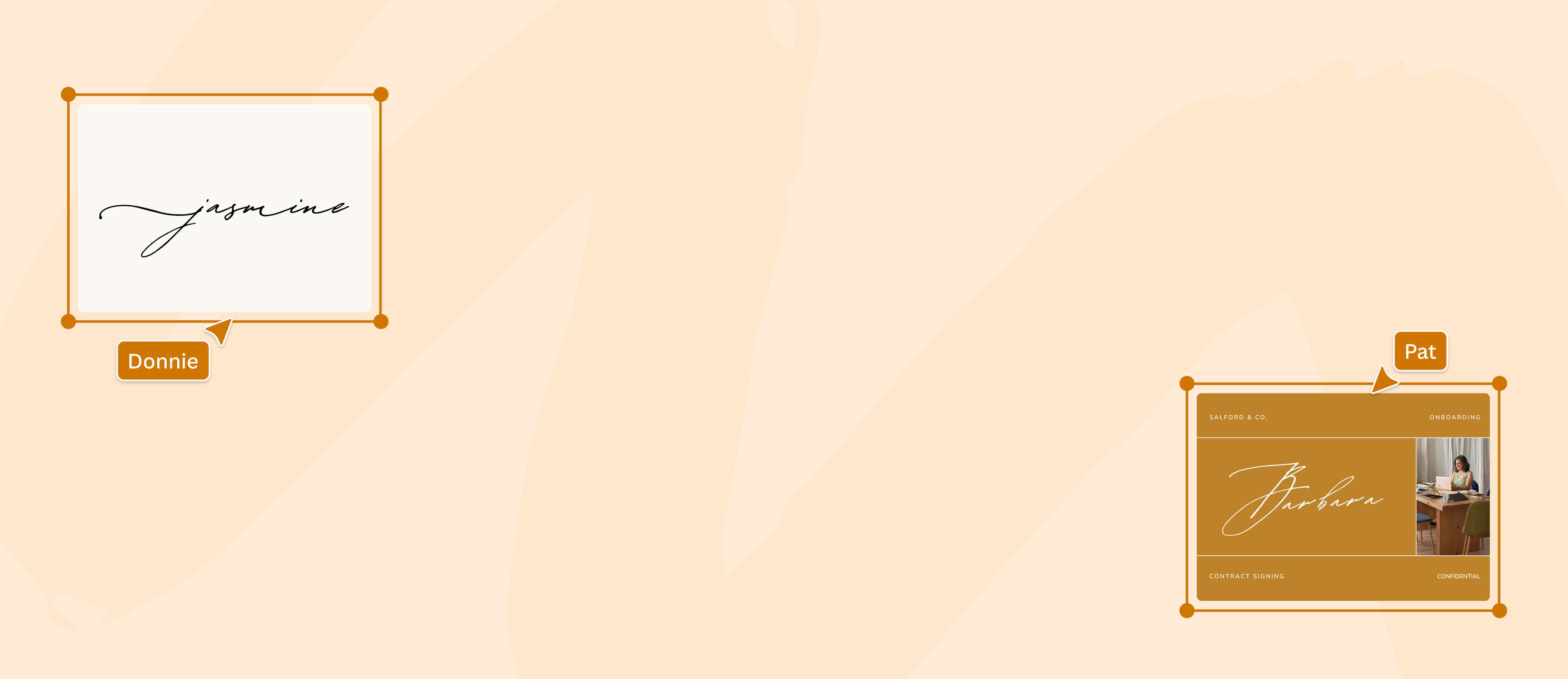
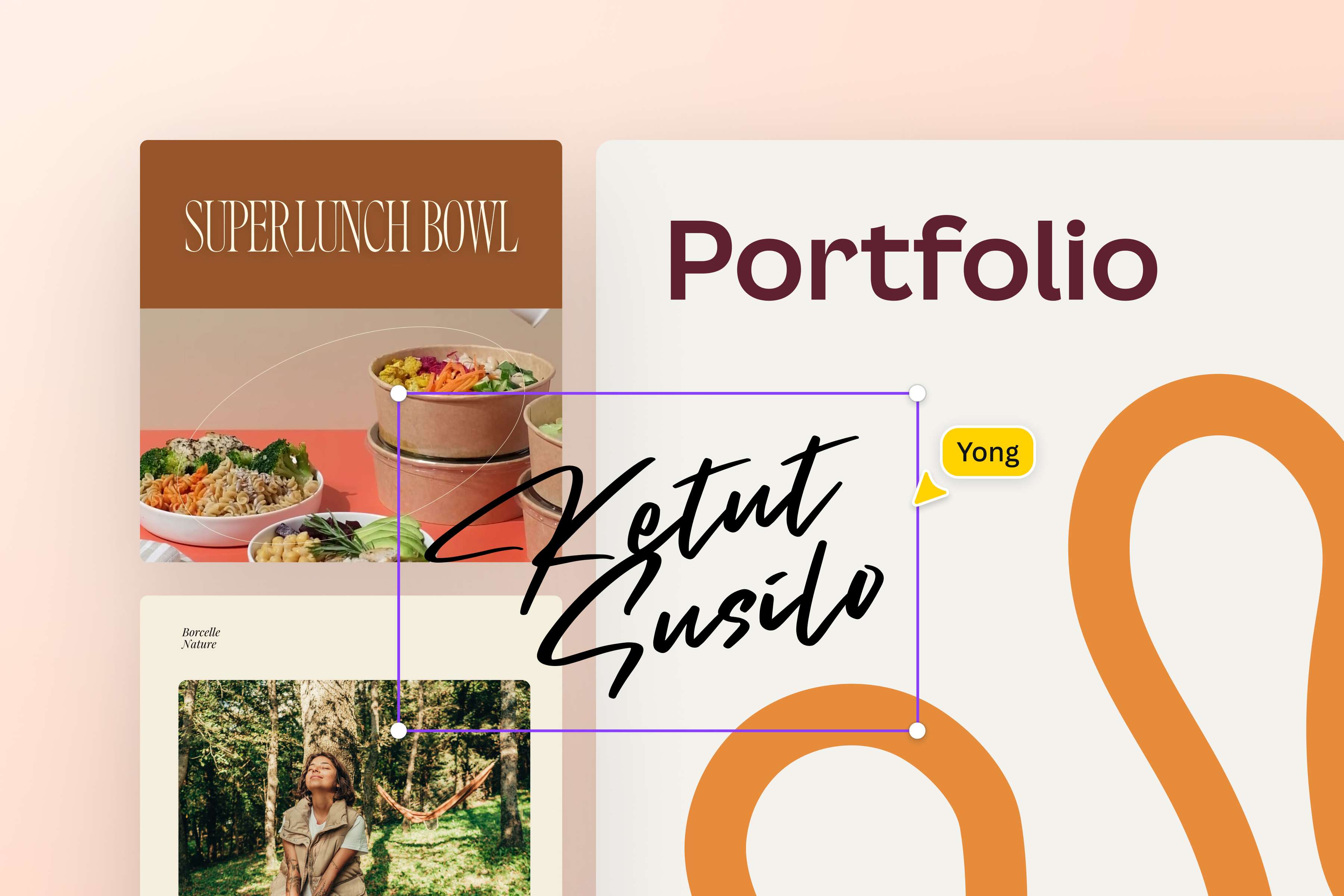
When you remove the background from a signature, you’re left with a transparent image that can blend smoothly with different colors schemes and backgrounds. You can easily drag and drop your signature into new and existing projects on Canva, or download it as a PNG to keep the background transparent. Then, just paste your signature onto images and documents with minimal editing.
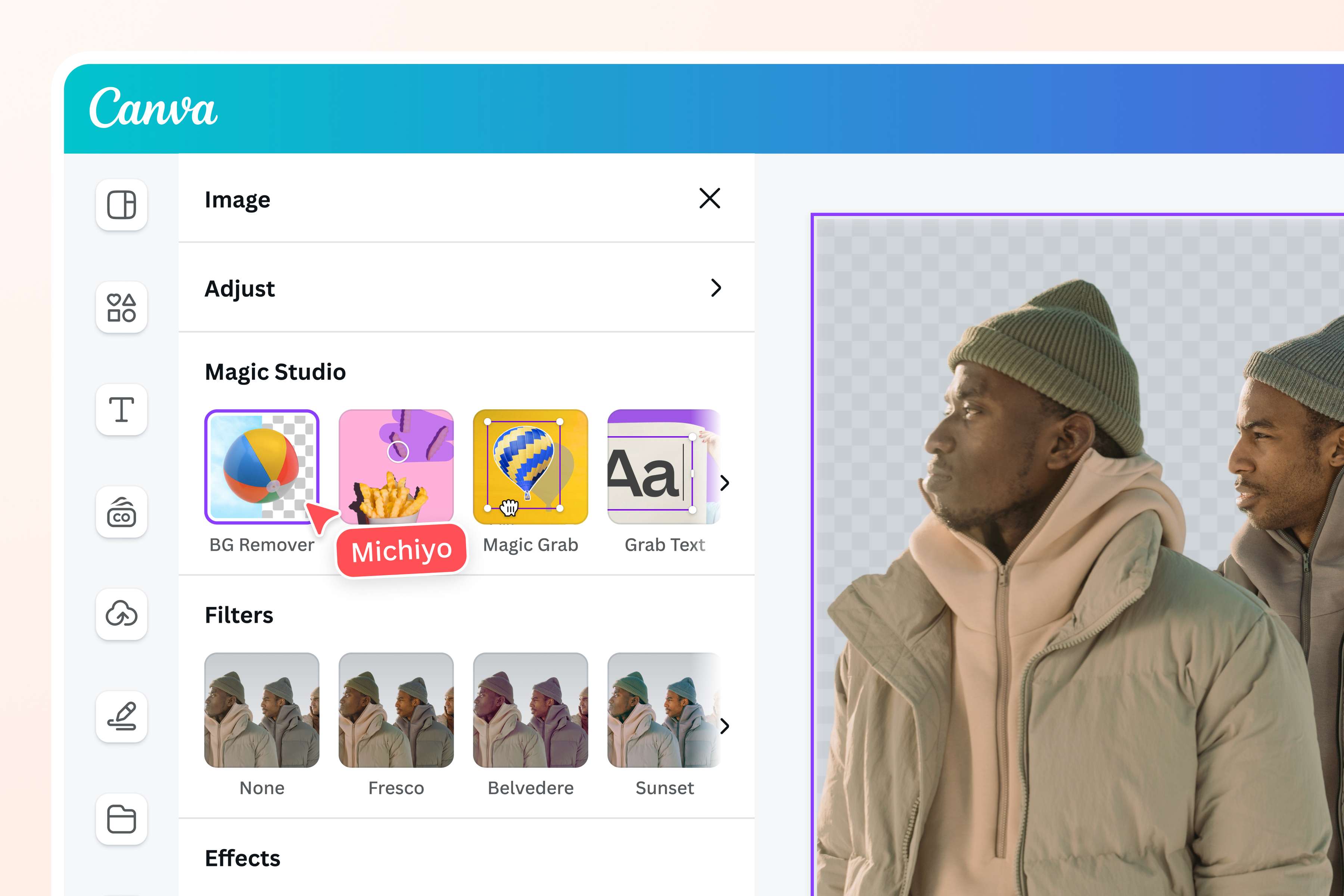
More than just a background remover for signatures
Canva’s Background Remover works on a wide array of images, whether it’s people or objects. You can use it to remove a distracting background from a portrait for a professional-looking profile photo, or clean up product images for a more cohesive ecommerce site.
How to remove the background from a signature
Open Canva
Launch Canva on your web browser or mobile device. Choose a template or start a project from scratch.Upload your image
Select a file from your device then drag and drop it to your design. Canva will turn your design into an editable one.Remove your signature’s background
Click on your image, select Edit, then click BG Remover. To make adjustments, click BG Remover again and use the Erase brush to clean up your image or Restore to bring back deleted elements.Improve your design
Refine your design further by exploring our free photo editor(opens in a new tab or window). Additionally, crop your image(opens in a new tab or window) to reframe it, insert text, and use filters to enhance your image.Download in PNG format
Download your signature as a high-quality PNG file. Use it in digital documents, marketing materials, emails, and more.
Frequently Asked Questions
- Canva’s Background Remover can be used for free once. If you want unlimited uses, you’ll need to upgrade to Canva Pro. Aside from the premium Background Remover, this’ll give you access to other premium features.