Add vignette effect to photo
Transform your ordinary photo into a visual masterpiece. Apply a free vignette filter to your images using Canva to inject drama or a cool retro vibe—no design skills required.
or drop it here
Learn about Canva’s upload formats and requirements. See how we use your content in our Privacy Policy.
How to make a vignette effect
1
Upload your image
Select the “Upload your image” button or easily drag and drop your files into the section.
2
Edit your image
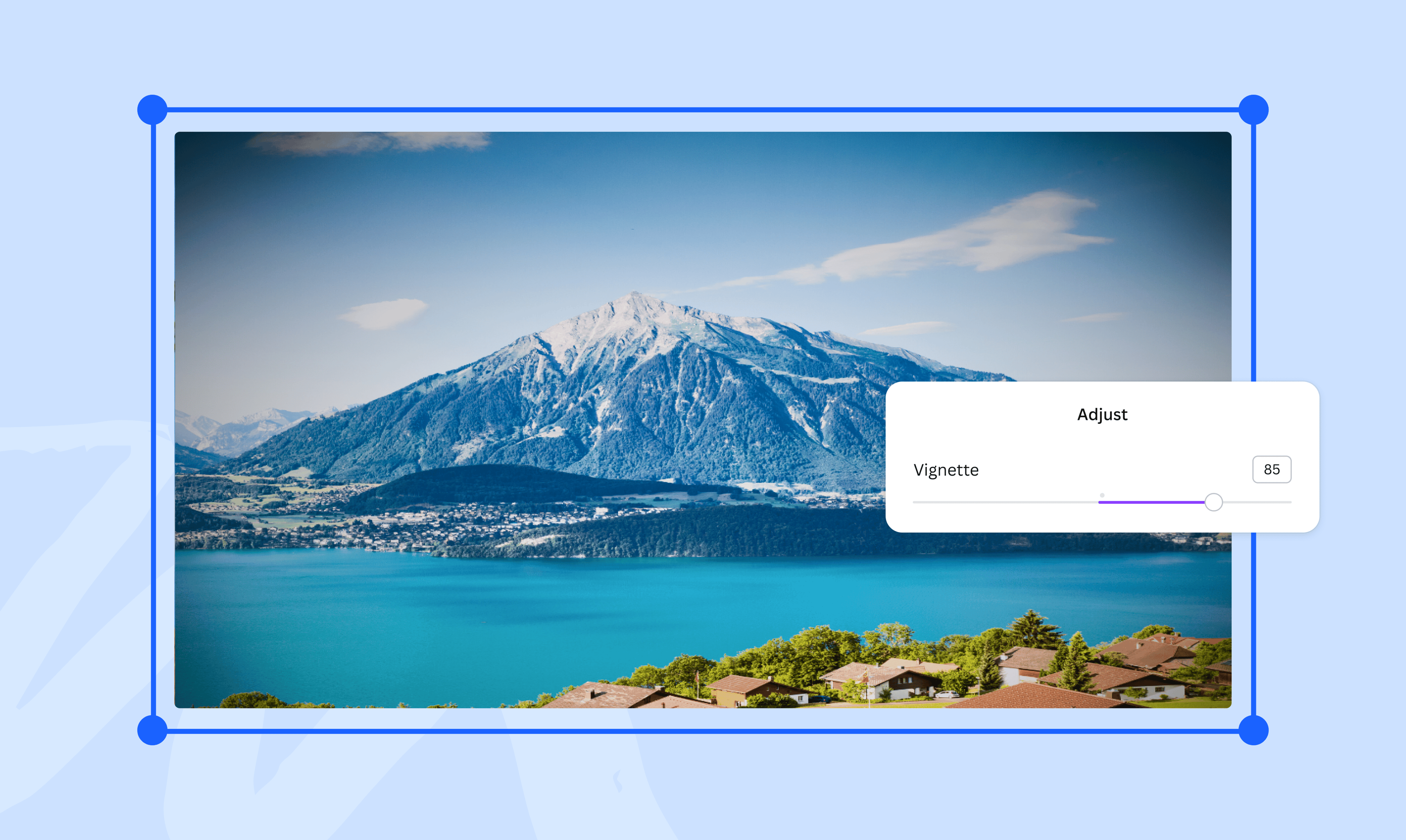
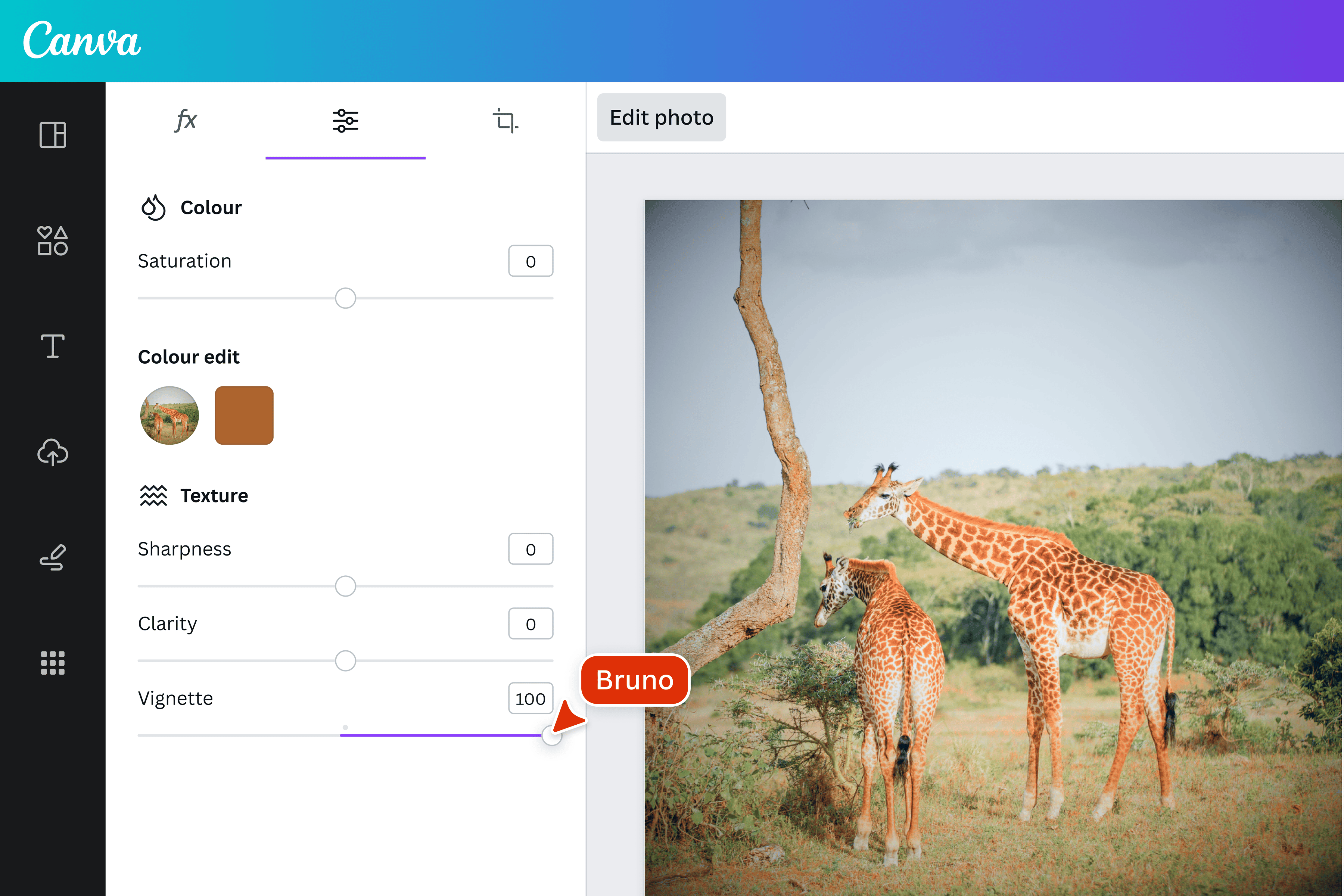
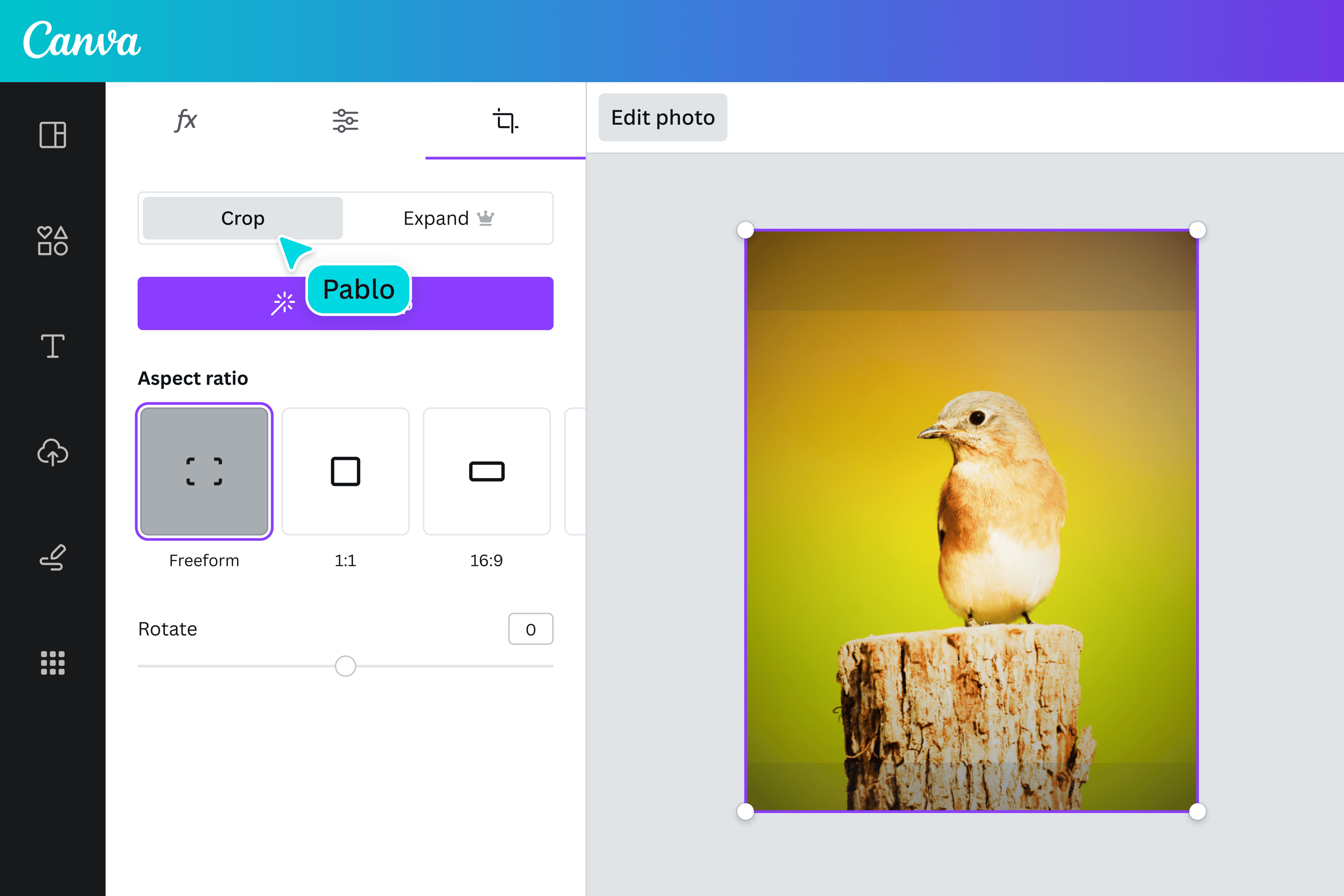
Click “Edit photo,” then navigate to the Adjust tab. Scroll down to use the Vignette slider tool.
3
Download your image
Finally, download your new vignette photo as a high-quality JPG or PNG file for free.
Enhance images with a brilliant vignette
Infuse your images with the same vintage charm as grandma’s old photos. Use our intuitive photo editor to add a free vignette effect to any picture and give it a new look. Upload your image, adjust the vignette slider, and watch your photo come alive with mood or composition enhancements. Skip the hours of tinkering with complicated software—Canva brings effortless design right to your fingertips.
Strike a darkened tone
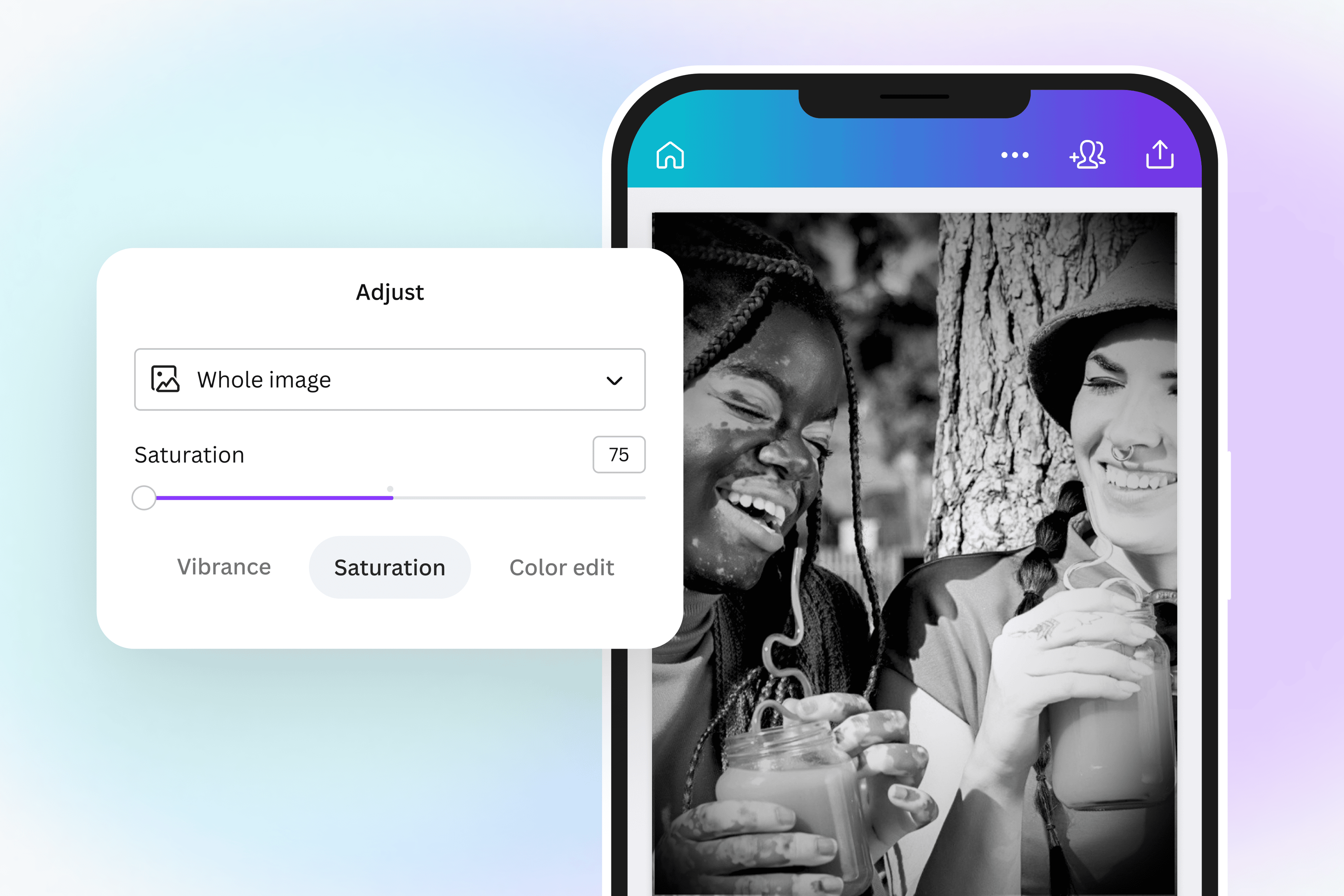
Dive into vignetting with Canva’s photo editing tools. Nudge the slider to apply a slight vignette, giving your images an antique, lived-in feel. Experiment with the color and texture sliders until your picture looks richly retro. Turn any photo monochrome by adjusting the saturation slider all the way down. Want a period photo? Combine a vignette filter with a grayscale image to amp up the drama.
Bring attention to the center
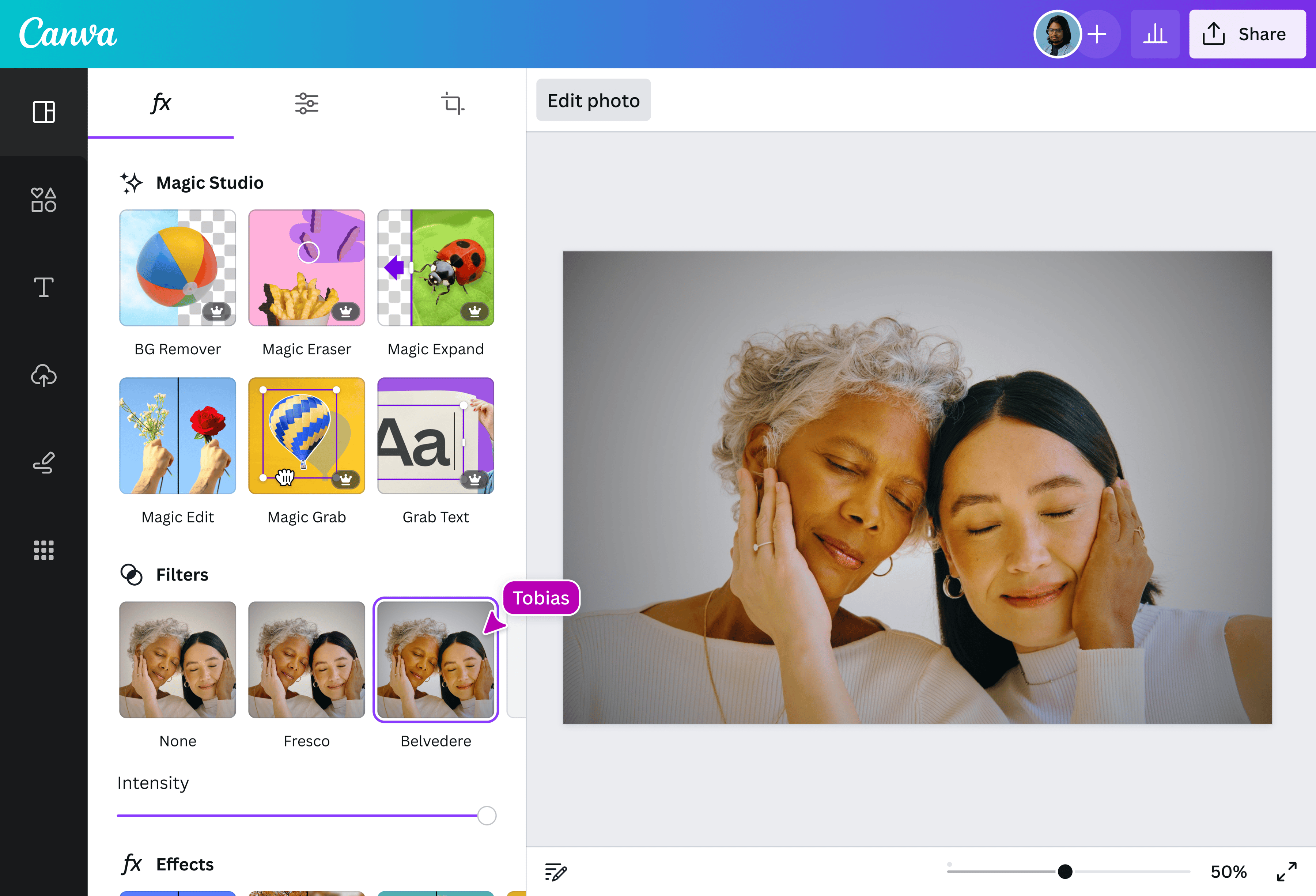
Darken the edges of your image and enhance its presentation and composition. Try a heavy vignette to let your subject take center stage and pull the viewer’s eye toward the center of the photo. Play with creative cropping and negative space to add focus and depth. Add an easy vignette effect to your pictures on Canva and produce visuals that are warm, balanced, and ready to be shared anywhere.
How to make a vignette effect
Launch Canva
Open Canva on the app or a web browser to access our online photo editor.Upload your image
Upload the photo you want to add a vignette effect.Add vignette effect
Click Edit photo, then navigate to the Adjust tab. Under Texture, scroll down to Vignette. Adjust the slider or enter a number in the option box to add a vignette effect to your image.Explore more tools
Fine-tune your image with more tools in the online editor. Darken(opens in a new tab or window) your photo, rotate(opens in a new tab or window) it to a new orientation, or enhance it in one click by applying filters and effects(opens in a new tab or window). You can also edit text in your image(opens in a new tab or window).Download and share
Happy with the final look? Download your new vignette photo as a high-quality JPG or PNG file, add it to an existing Canva design, or publish it on your social media feeds.
Frequently asked questions
- The vignette effect is the darkening of an image’s corners or edges for artistic purposes. This technique draws the viewer’s attention to the center of the image, providing visual contrast and a sense of depth. It's often used in portrait and product photography.