Overlay images to create visually compelling content
Design stunning image overlays with Canva’s powerful yet beginner-friendly photo editing tools. From branded social media posts to personal pictures, instantly craft a multi-layered visual story for free.
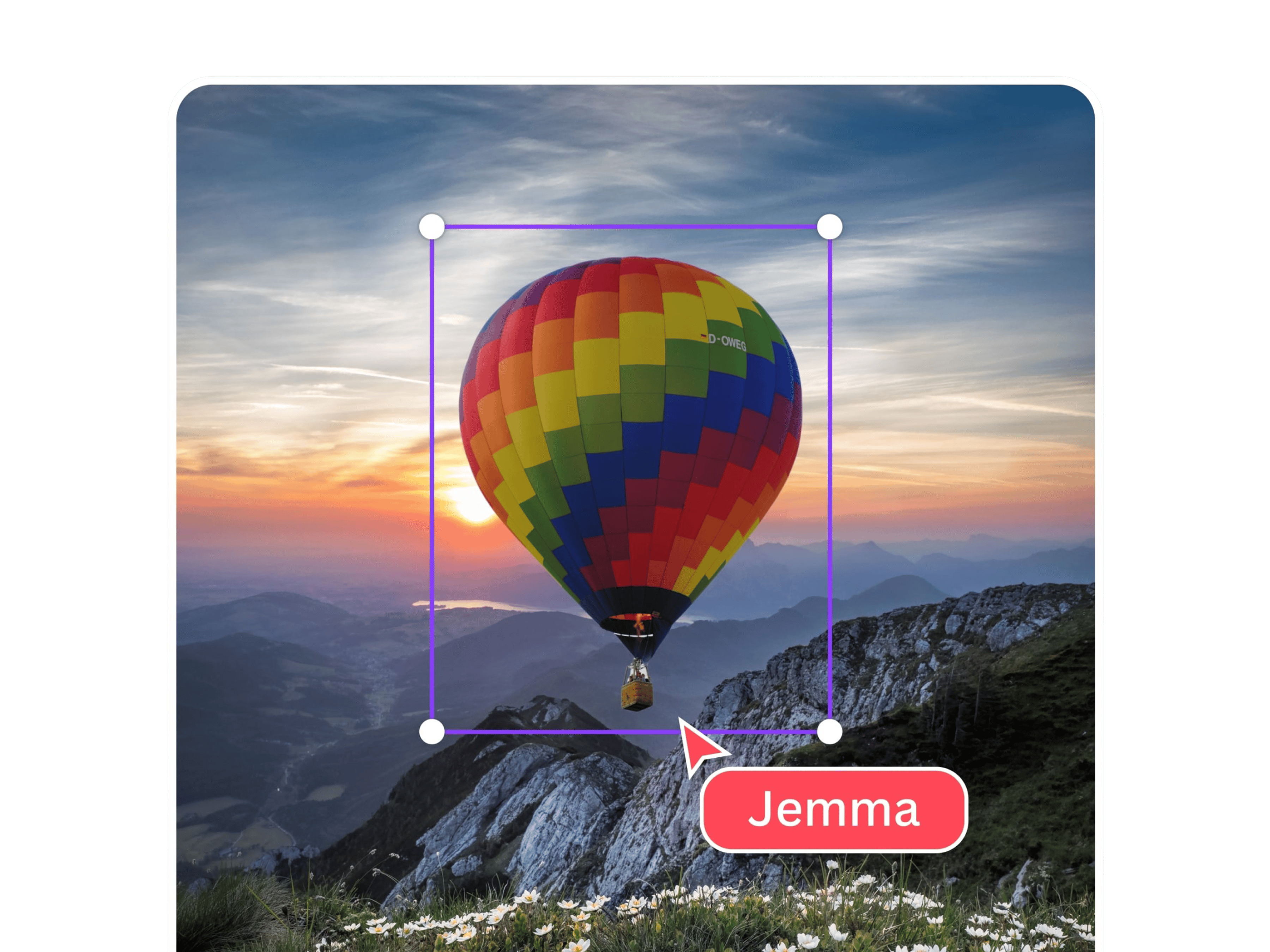
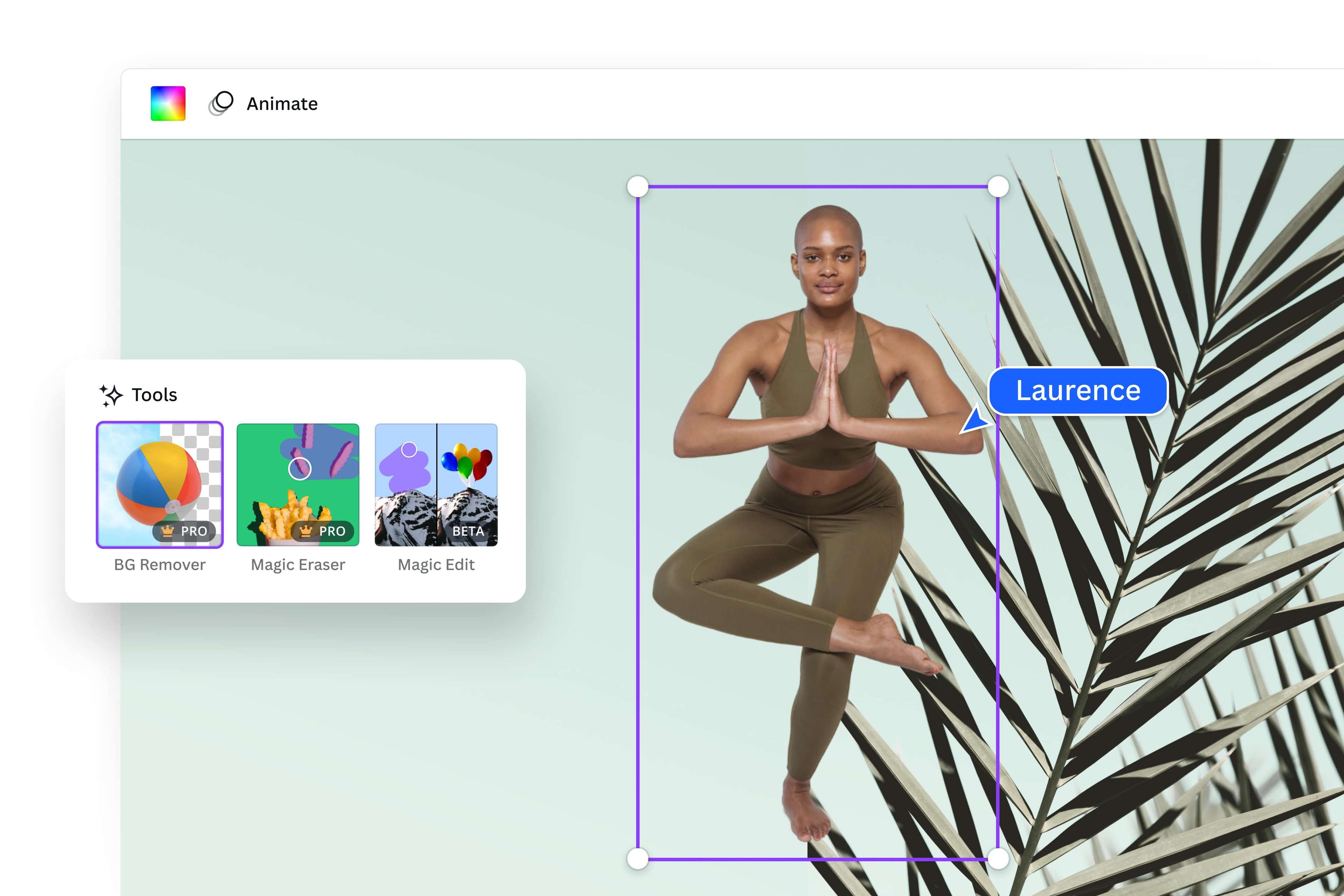
Layer images in just a few clicks
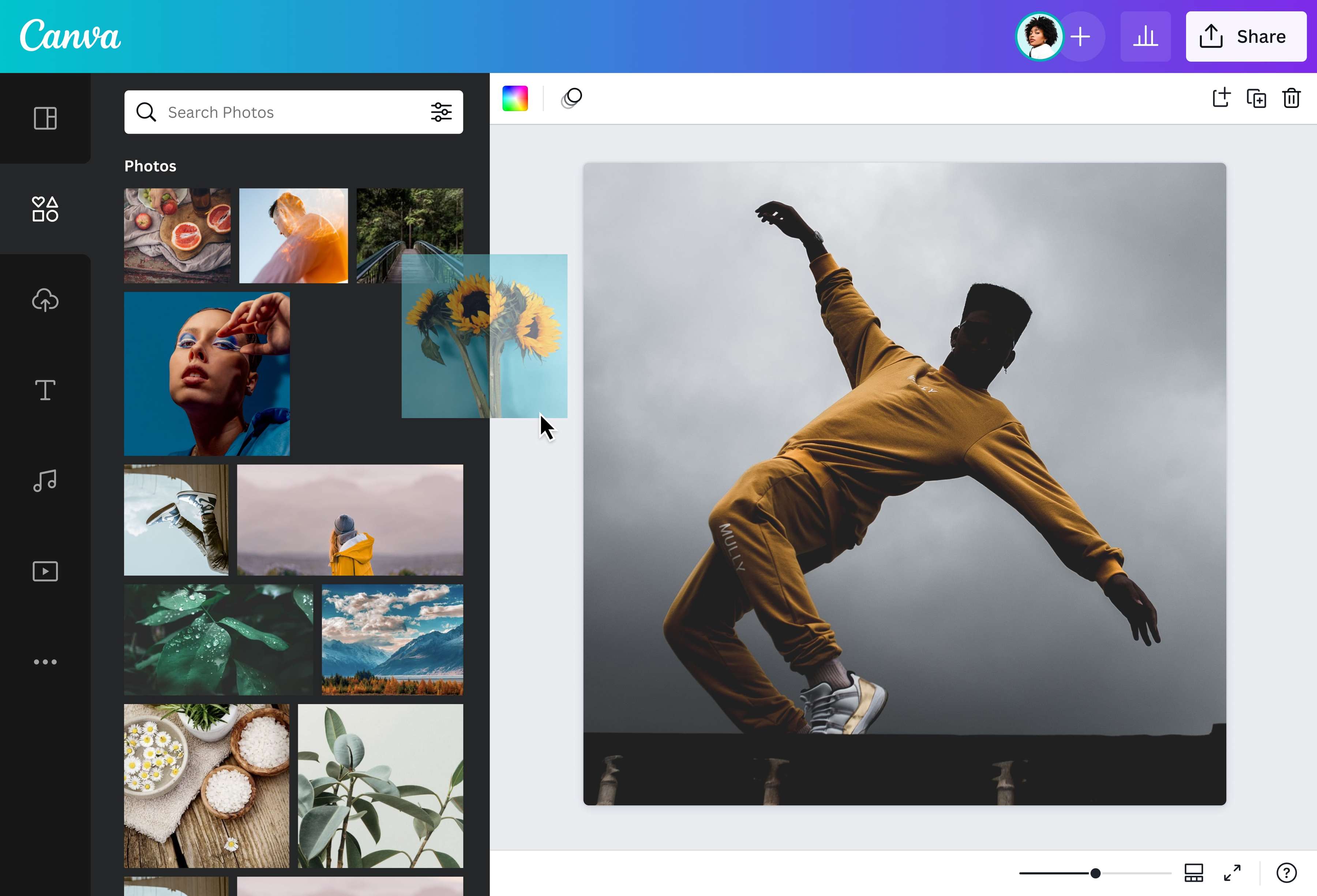
No need for advanced skills or complicated design software. Effortlessly add image to image on Canva to produce beautiful, surreal designs that stand out. Remove backgrounds and make your photos transparent for convenient layering. Adjust the positioning by sending images to the front or back with Layers. Then, use our Transparency slider to add a sheer, delicate effect. From personal social posts to branded marketing materials, you can superimpose images and let your pictures blend seamlessly.
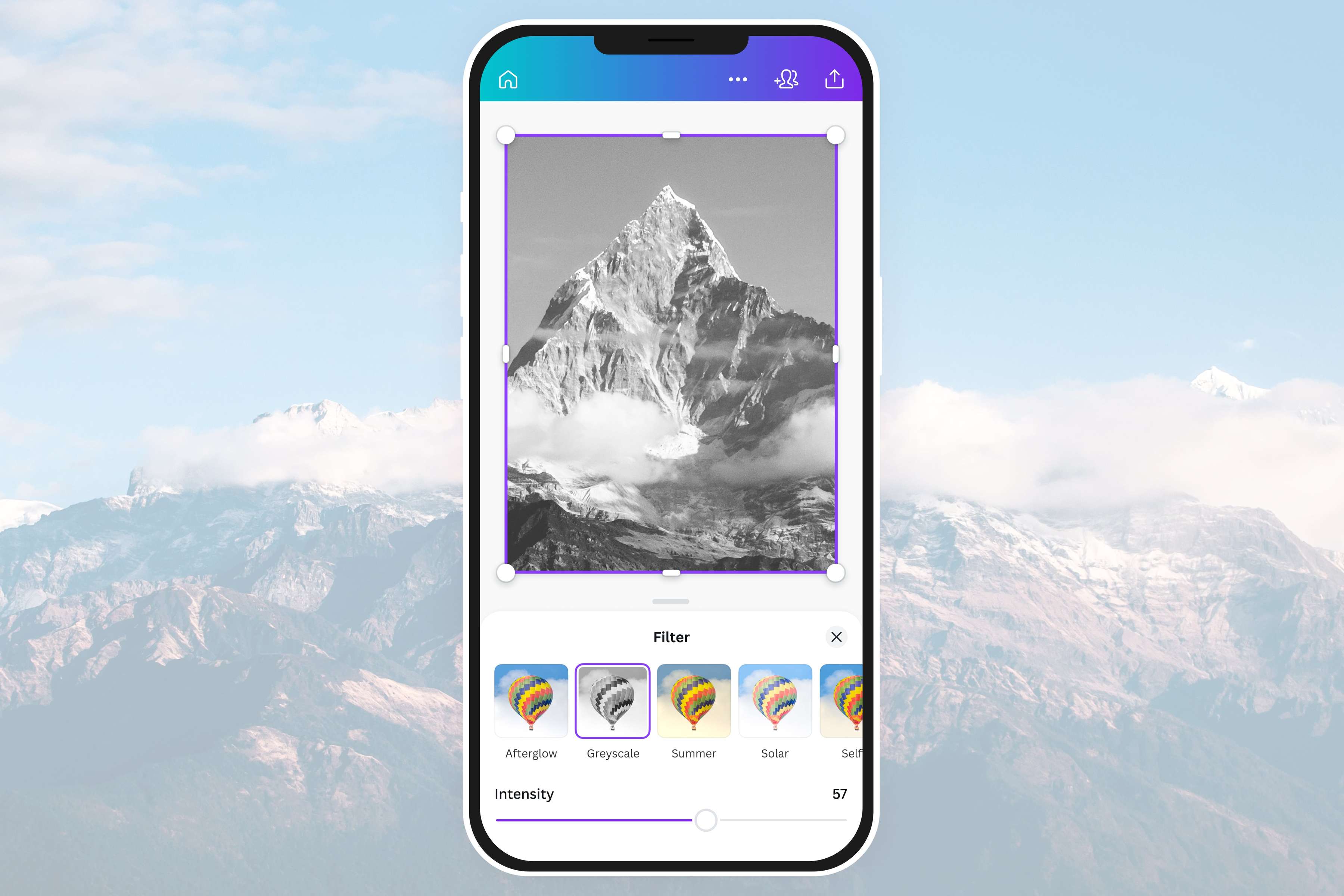
Add an artistic touch
Unlock your design potential with Canva’s online photo editor. Go beyond superimposing photographs and turn your ordinary pictures into artistic imagery. Add an element of drama to your portrait with a black-and-white filter. Amplify your landscape shot with mirror effects. Then, smartly resize your design for any platform with a Pro account. Customize your photo overlay as little or as much as you like, then share or download it instantly without altering the quality.
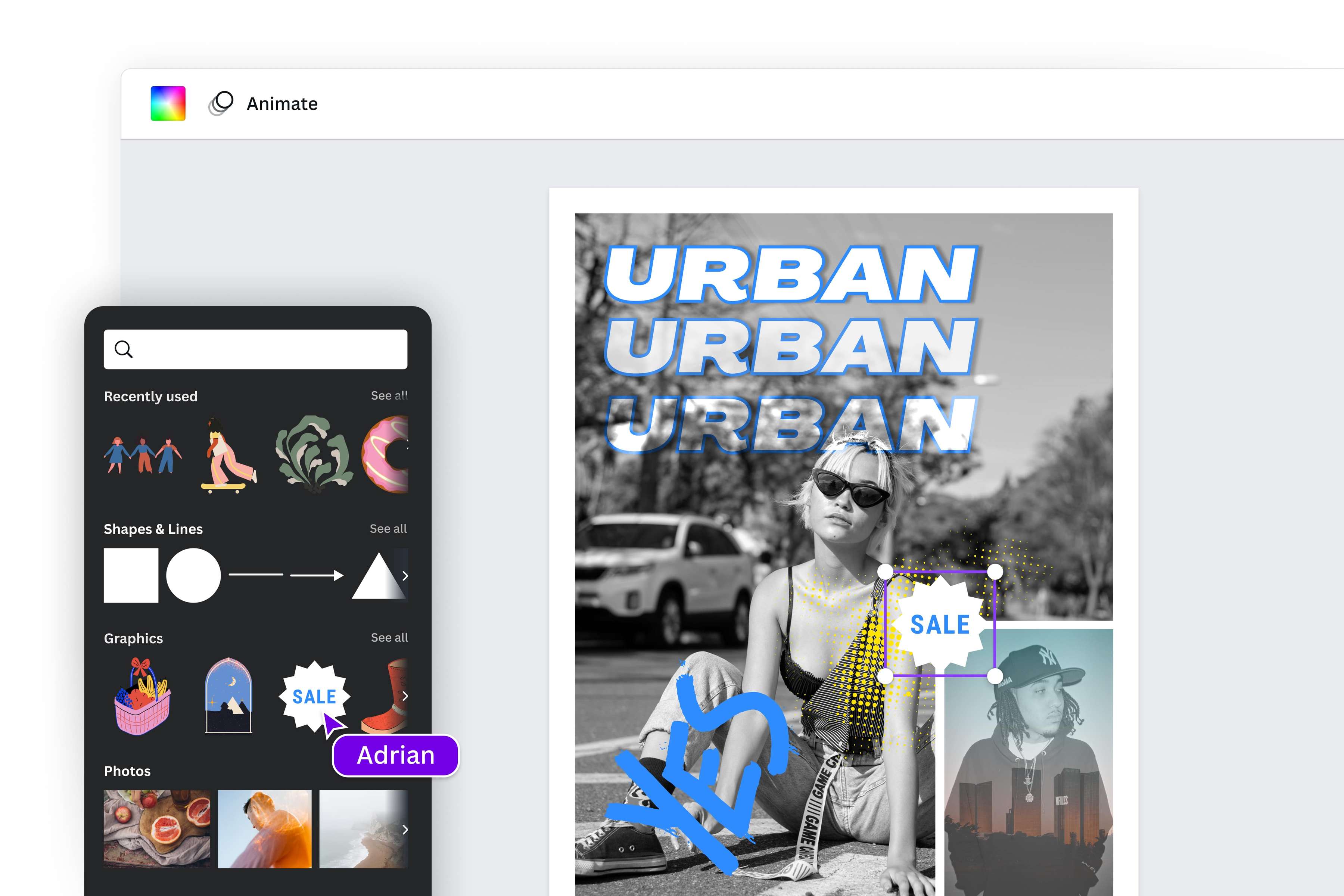
Take control of your visual narrative
With Canva’s drag-and-drop design tools, you can polish your overlay images online in one platform. Use our intuitive photo editor to change photo background, combine images, add text, and layer them with icons, stickers, and other graphic elements from our extensive media library. Whether it’s a Facebook post for your brand or a presentation for your next work meeting, use image layering to your advantage and create striking visuals to drive your story forward. Use Canva to convert PPTX to PDF and keep the integrity of your creative work untouched.
How to overlay pictures
Launch Canva
Open Canva on a web browser or the app. Start your design project by working off a ready-made template or opening a blank canvas.Upload your photos
Click the Uploads tab to upload your desired photos onto the editor. You can also browse our media library to find high-quality stock images(opens in a new tab or window) to use in your design.Overlay photos
Right-click on a photo and use the Layer option to bring it forward or backward, or select Position and rearrange the blocks to layer your photos accordingly. Then, select Transparency in the toolbar above the editor and use the slider to adjust the transparency of each photo.Embellish your design
Customize your design further using our handy photo editing(opens in a new tab or window) tools. Apply trendy photo effects(opens in a new tab or window) to nail your desired aesthetic. Insert text in stylish fonts. Explore thousands of unique icons, vectors, and illustrations in our library to match your overall vision.Download and share
Once you’re happy with your work, download it in a high-resolution JPG or PNG format. Add it to an existing Canva design. Or publish it immediately to your social media profiles right from the editor.
Frequently asked questions
- Overlay images are images layered one on top of another. They consist of a base image and secondary images or elements to enhance the photo or image.