
Standardize your images with the free JPG converter
Transform images into easy-to-share standardized files online with the JPG converter on Canva. Turn any image into a universal JPG that works with the widest range of applications in a few clicks.
or drop it here
Learn about Canva’s upload formats and requirements. See how we use your content in our Privacy Policy.
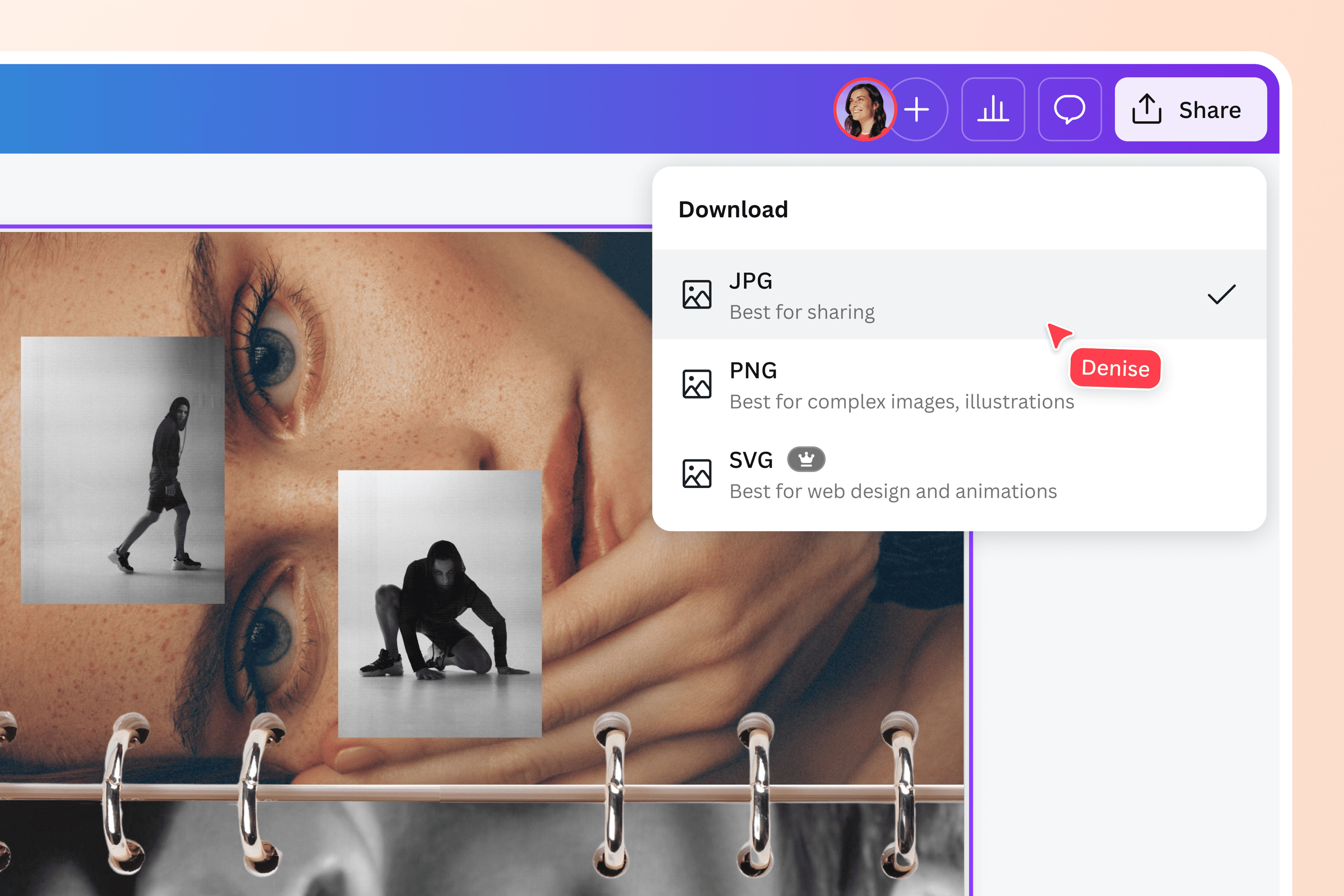
Compress images into instant JPGs
Easily share and post your images online by converting them with the JPG converter on Canva. Switch to JPG from various file formats: PNG, BMP, GIF, WebP, HEIC/HEIF, or PDF.
Why convert to JPG? The JPG format is the most accessible image file format, supported by most image-viewing programs. Converting to JPG also compresses your images without significant loss in resolution.
Polish your image before converting to JPG
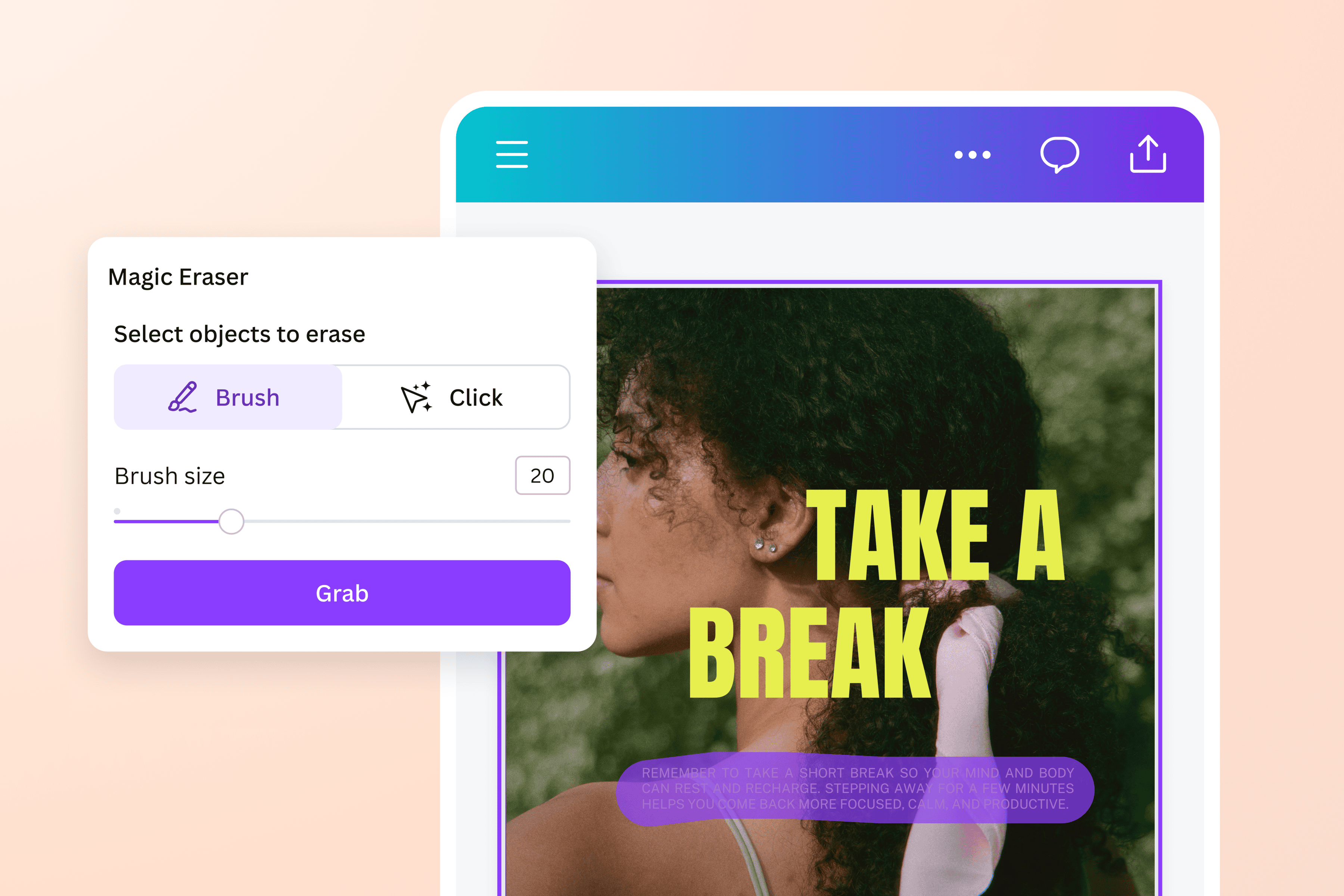
Beyond easy JPG conversion, Canva’s photo editor allows you to polish any image. Adjust the brightness and saturation to perfection. Or, tell a story with effects, graphic elements, and text.
Discover infinite possibilities with AI through Magic Studio (Pro). With a prompt, you can transform your image with Magic Edit, erase unwanted elements with Magic Erase, and extend images with Magic Expand.
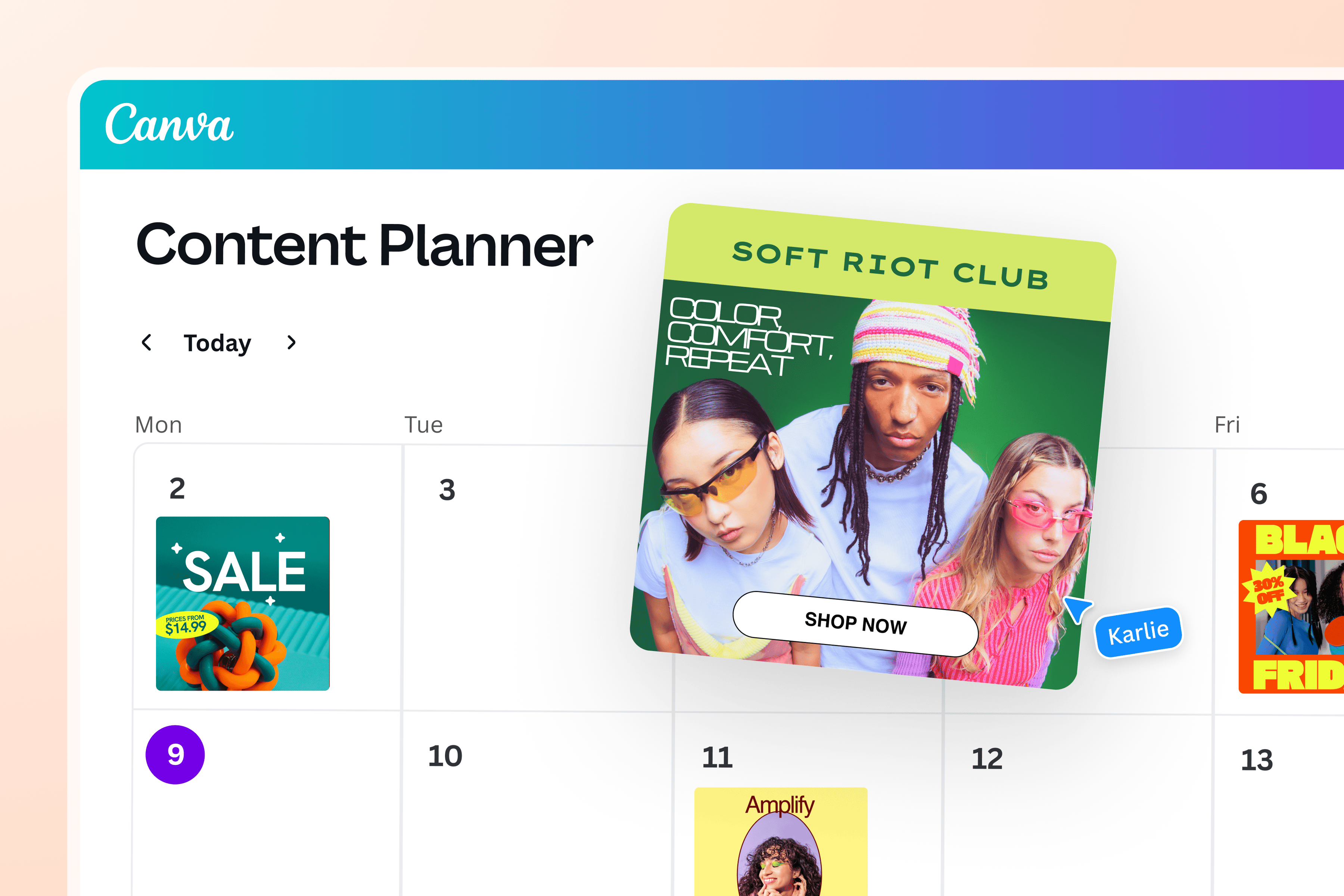
Convert and create in one platform
No need to switch to another platform to take your converted JPG to new heights. Canva’s visual suite is the perfect platform to turn your image into a beautiful asset worth sharing. Whether you’re looking to insert your JPG on branded social media posts, school presentations, a full-blown website, or turn it into an animation, Canva has you covered.
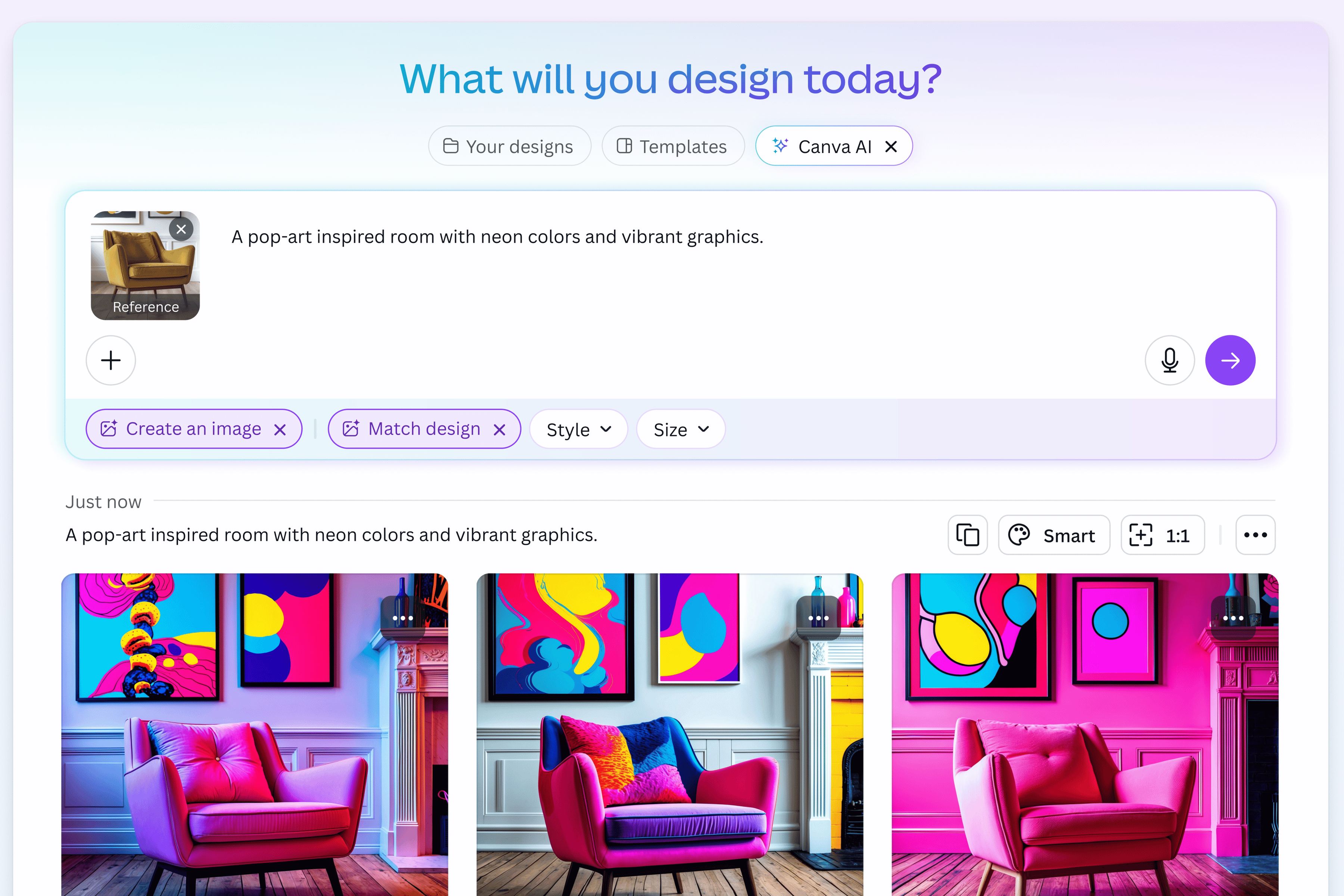
Generate JPGs from scratch with AI
With the AI image generator apps on Canva, you can fully take control of your image. No need to spend hours looking for the perfect image. Just type what you have in mind and watch AI bring your vision to life in seconds.
How to convert an image to a JPG
Launch Canva
Start a new project or open an existing one on Canva’s mobile, web, or desktop app.Upload your image
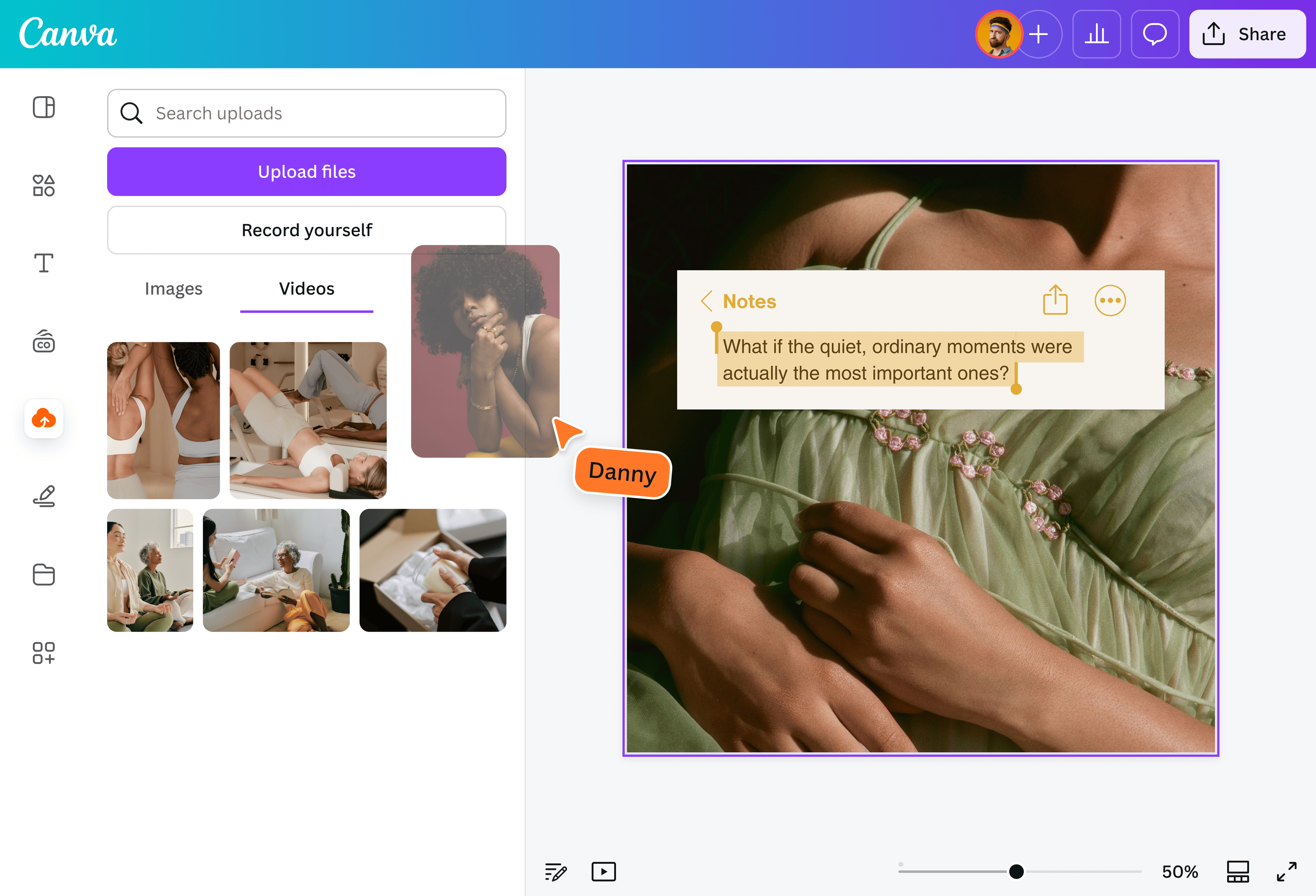
Drag and drop your file (PNG, GIF, BMP, PDF, HEIC/HEIF, WebP) to upload. To convert multiple images, drag each image to a separate page.Edit your image
Use Canva’s drag-and-drop photo editing tools and AI features to polish your image before conversion.Convert your image to JPG
Once you’re done editing, it’s time to convert your image to JPG. Click Share > Download. Choose JPG as your file type and hit Download.Share, download, or use in a design
You can now use your JPG in any project. Attach it to an email to share, post on your blog or website, or use it in a Canva design. Save it in your cloud folders without worrying about file size.
Frequently asked questions
A JPG/JPEG converter is a tool or software that converts various file formats into JPG images. JPG/JPEG stands for Joint Photographic Experts Group. It's the standard image file format supported by a great number of platforms and programs.
The best JPG converter depends on your preference and requirements. If you need an image converter where you can edit your image or incorporate it into a design, Canva’s JPG converter is an excellent option.
Our converter tool lets you upload and convert your file to JPG in just a few clicks. If you need to make some changes to your image before conversion, you can also easily do that on Canva, too!
Want to feature your JPG on a design or creative asset? Just upload your converted JPG to your Canva folder, and you can easily incorporate it into your project.