Free JPG to PDF Converter
or drop it here
Learn about Canva’s upload formats and requirements. See how we use your content in our Privacy Policy.
Manage your image files better and save on storage space by converting JPG files to PDF. Use Canva’s free JPG to PDF converter to touch up or edit your photos without lowering their quality or worrying about unnecessary watermarks.
Try these document editing tools
Edit, convert, translate PDFs and more. All the PDF editing tools you need!
How to convert JPG to PDF
1
Upload your image
Select the “Upload your image” button or easily drag and drop your files into the section.
2
Edit your design
Make some quick touch-ups on your images using our beginner-friendly editor.
3
Download your design
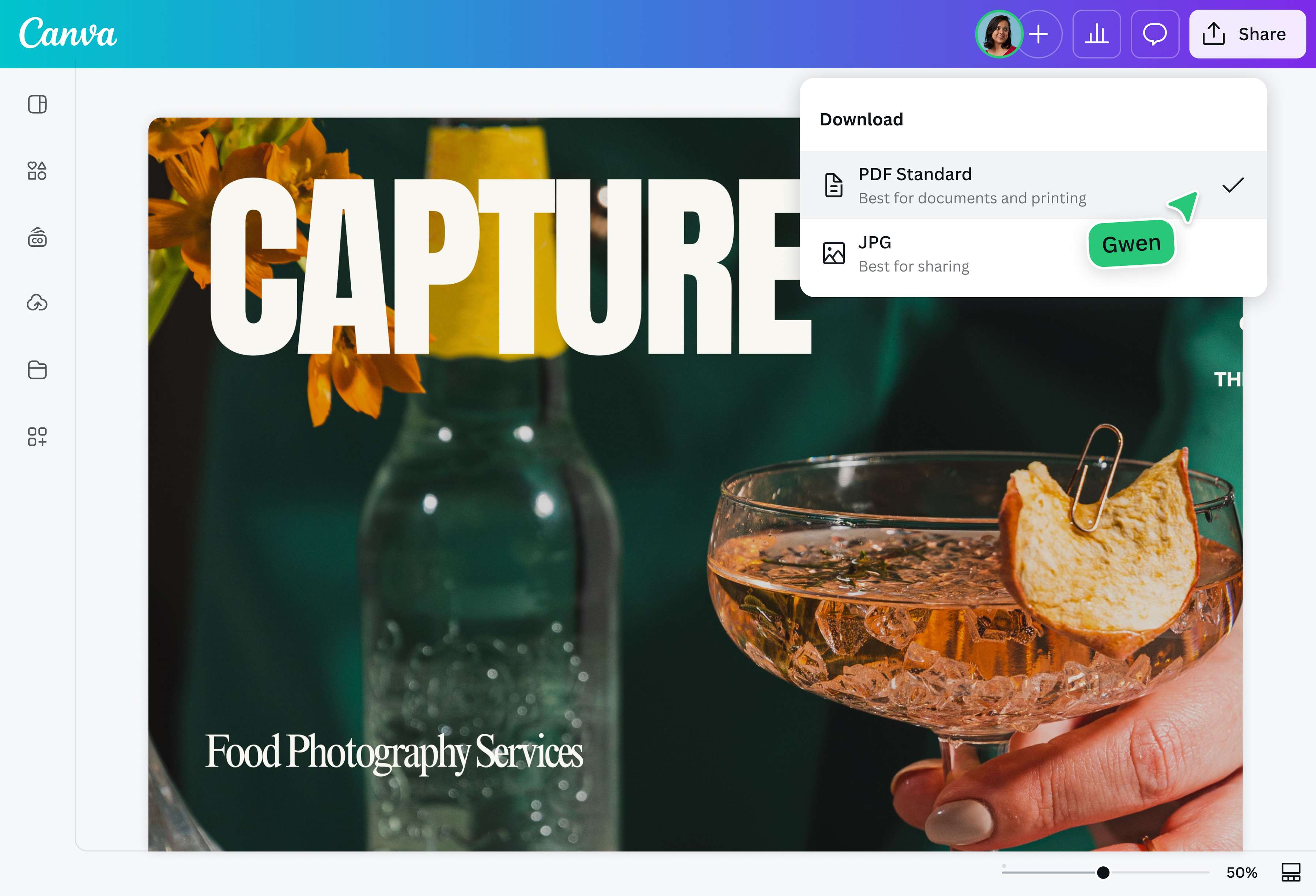
Finally, convert from JPG to PDF for free by downloading your design as a PDF document.
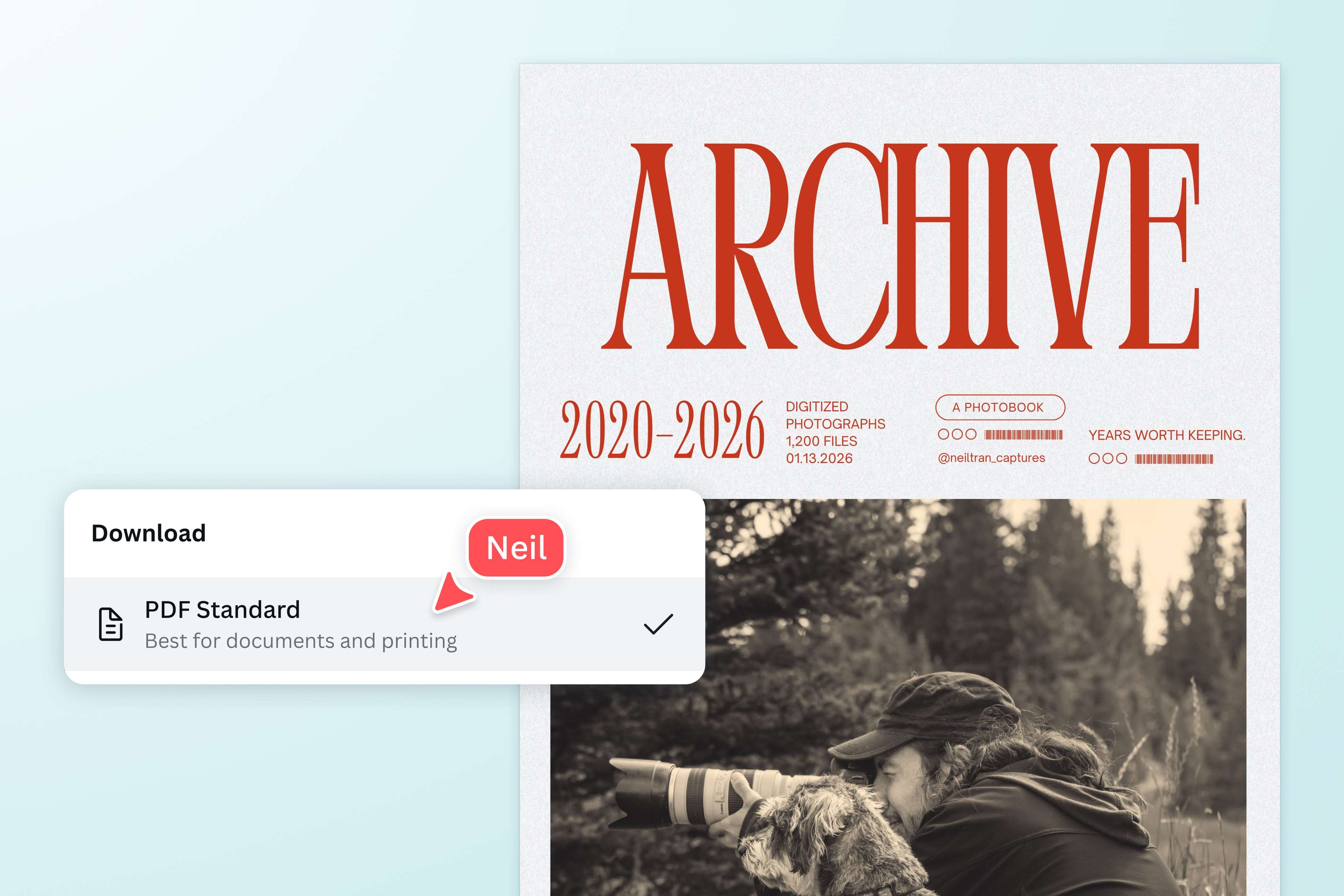
Free up necessary storage space
Keep all your digitized photographs in order and create even more new memories. Compress your existing files into smaller sizes by converting them from JPG to PDF. Changing their format with Canva’s JPG to PDF converter preserves their image quality and saves you from purchasing additional storage space.
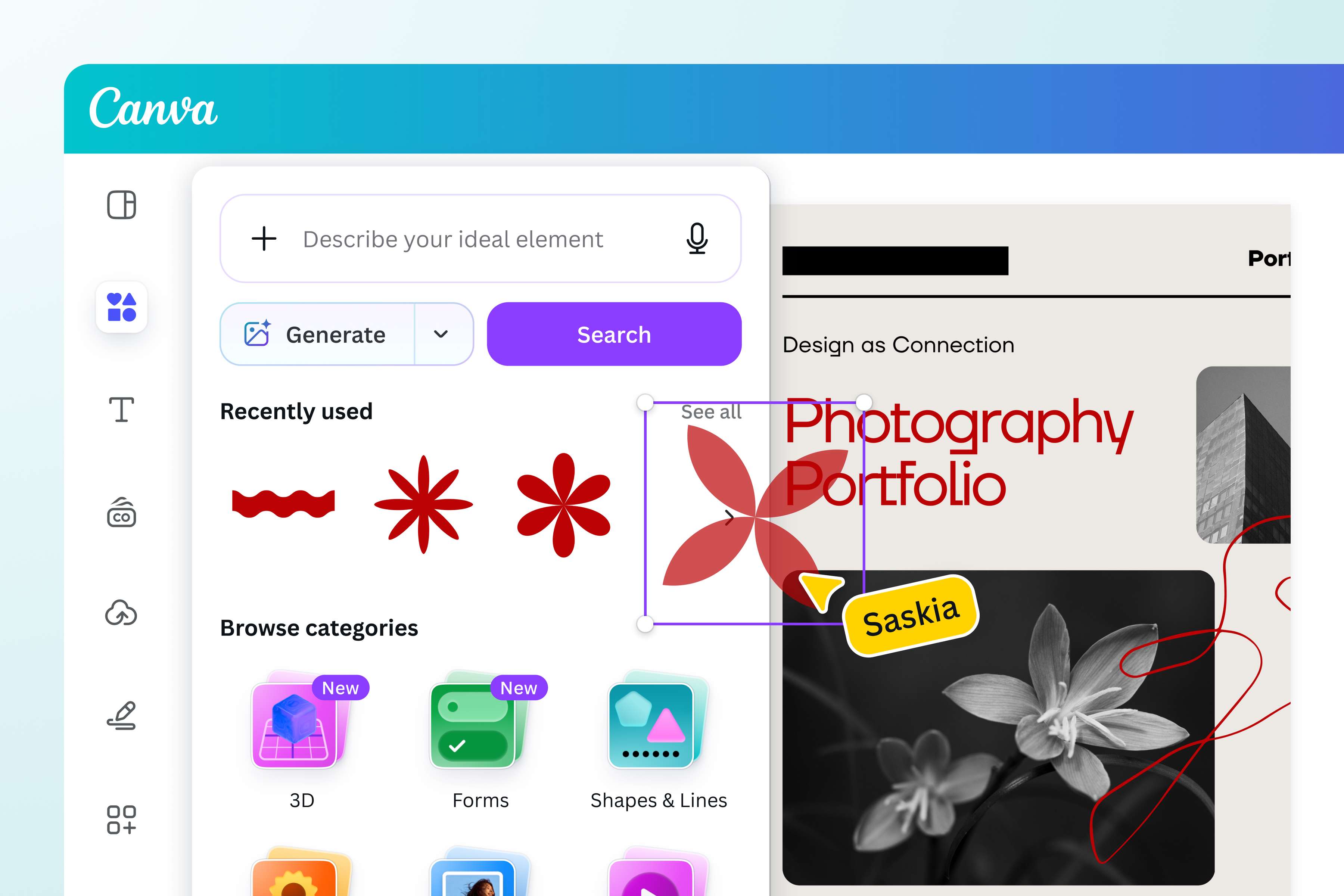
Spruce up your images with creative edits
Make artistic modifications to your images before you change your JPG files to PDF. Set them against a vibrant background and apply filters to enhance their appearance in our photo editor. Add fun graphic elements such as stickers, icons, vectors, and stylized captions. Explore different possibilities with Canva’s editing tools, from creating photo books to portfolio presentations. No need to worry about large file sizes and possible watermarks.
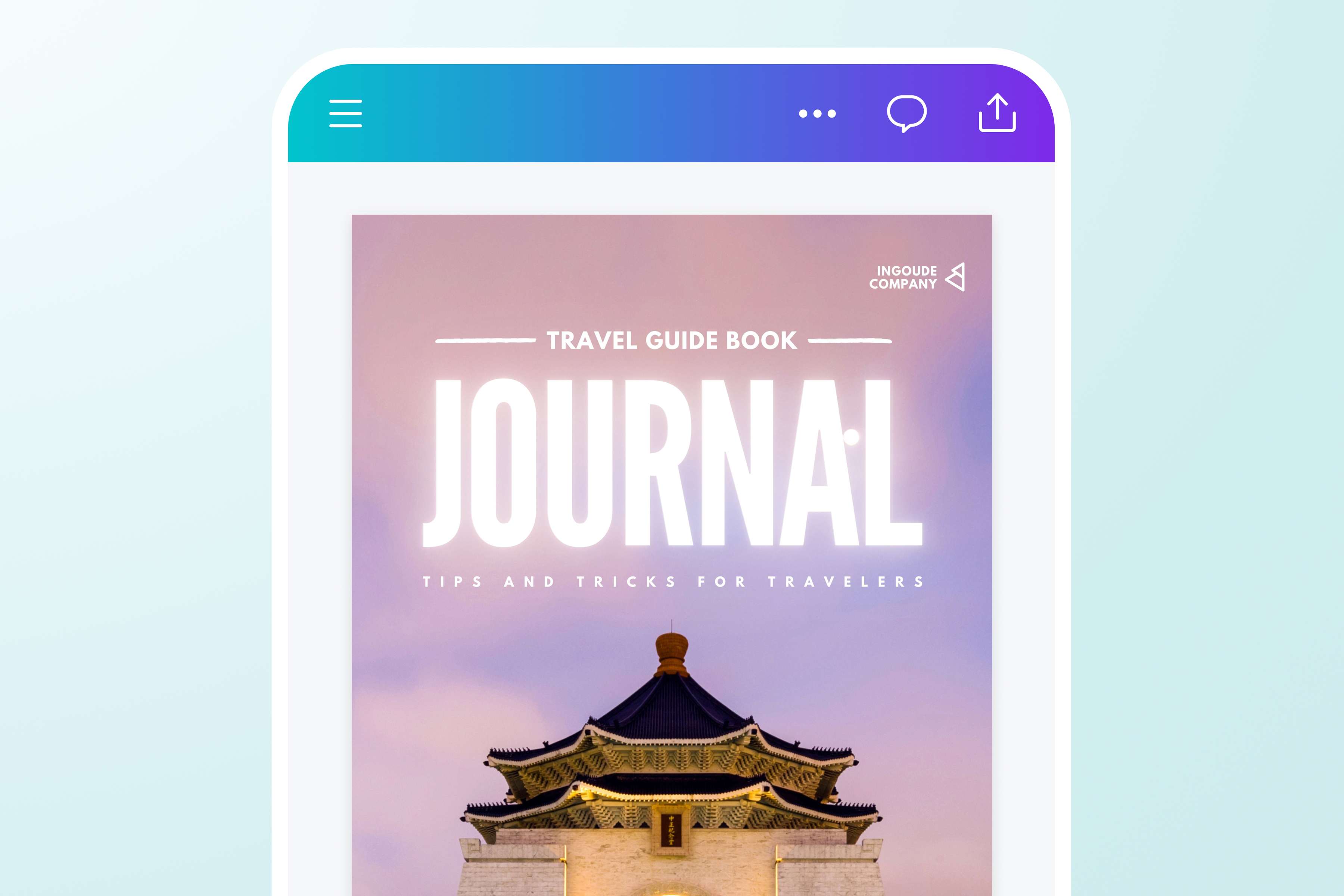
Easily share and access your images in PDF
By using Canva’s free JPG to PDF converter, you can access and view your images across different devices and operating systems. They’re also easier to email and download with their compressed file sizes, creating a smoother collaboration process. Enjoy all of our JPG to PDF converter functions while keeping the quality and integrity of your files intact.
How to convert JPG to PDF
Launch Canva
Open Canva on your mobile device or desktop to start a photo editing project or work on a template.Upload your JPG images
You can upload your JPG files on the editor or simply drag and drop them into your layout. To convert multiple JPG images to one PDF file, lay them out in one layout or add multiple pages to your design.Edit your images
Use Canva’s editing tools to enhance images(opens in a new tab or window). Adjust the brightness(opens in a new tab or window), contrast, and other settings, or apply fun filters. Crop(opens in a new tab or window), rotate(opens in a new tab or window), or mirror images(opens in a new tab or window) to set a new perspective. You can also add captions and creative details such as vectors, stickers, and other design elements from the library.Convert JPG to PDF online
Finalize your image to turn JPG to PDF by downloading your design. Click Share, then Download. Choose PDF among the file types to change your JPG image to PDF. If you plan to print your file, select Print under Presets for better quality.Share your PDF file
Use your newly converted JPG to PDF file in multiple ways. Share it digitally via email or store them in your device or cloud file folders without worrying about large file sizes.
Frequently asked questions
- Using our free JPG to PDF converter, you can edit your JPG images online before saving them in PDF. You also get to choose which PDF format to convert your image to. Download your design in PDF Digital for digital purposes, especially for mobile use and drive storage since they don’t take up much space. PDF Print is perfect for printing because of its higher resolution than PDF Digital and allows you to add crop marks and bleed for professional-looking prints.