Free JPG to PNG converter
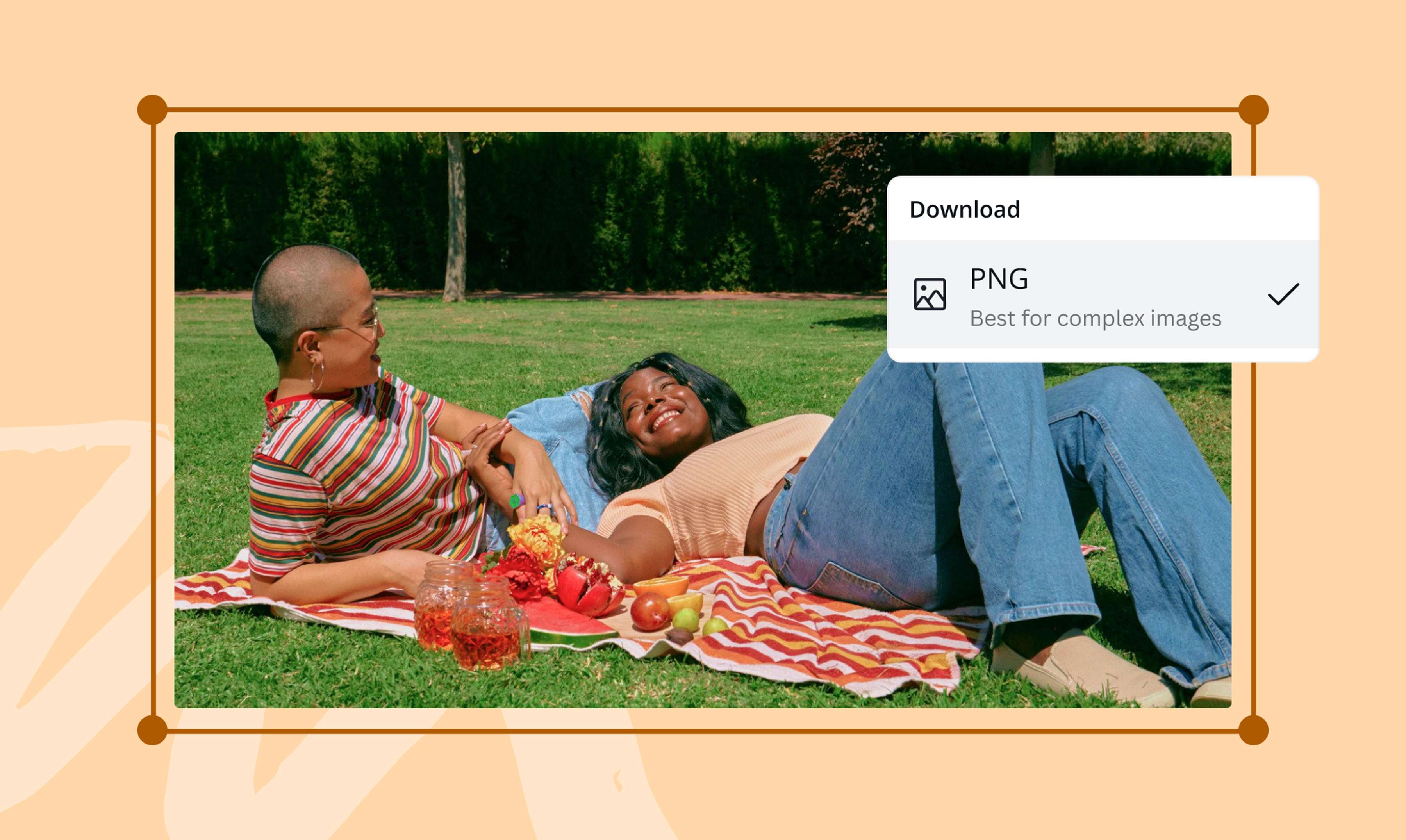
Enjoy transparent photos without compromising on quality by converting JPG to PNG. Use Canva's online JPG to PNG converter to remove distracting backgrounds, create overlays, and produce sharp, crisp images every time.
or drop it here
Learn about Canva’s upload formats and requirements. See how we use your content in our Privacy Policy.
Try these image converter tools
Edit and convert images and more. All the photo editing tools you need!
How to convert JPG to PNG
1
Upload your image
Select the “Upload your image” button or easily drag and drop your files into the section.
2
Edit your design
Make some quick touch-ups on your images using our beginner-friendly editor.
3
Download your image
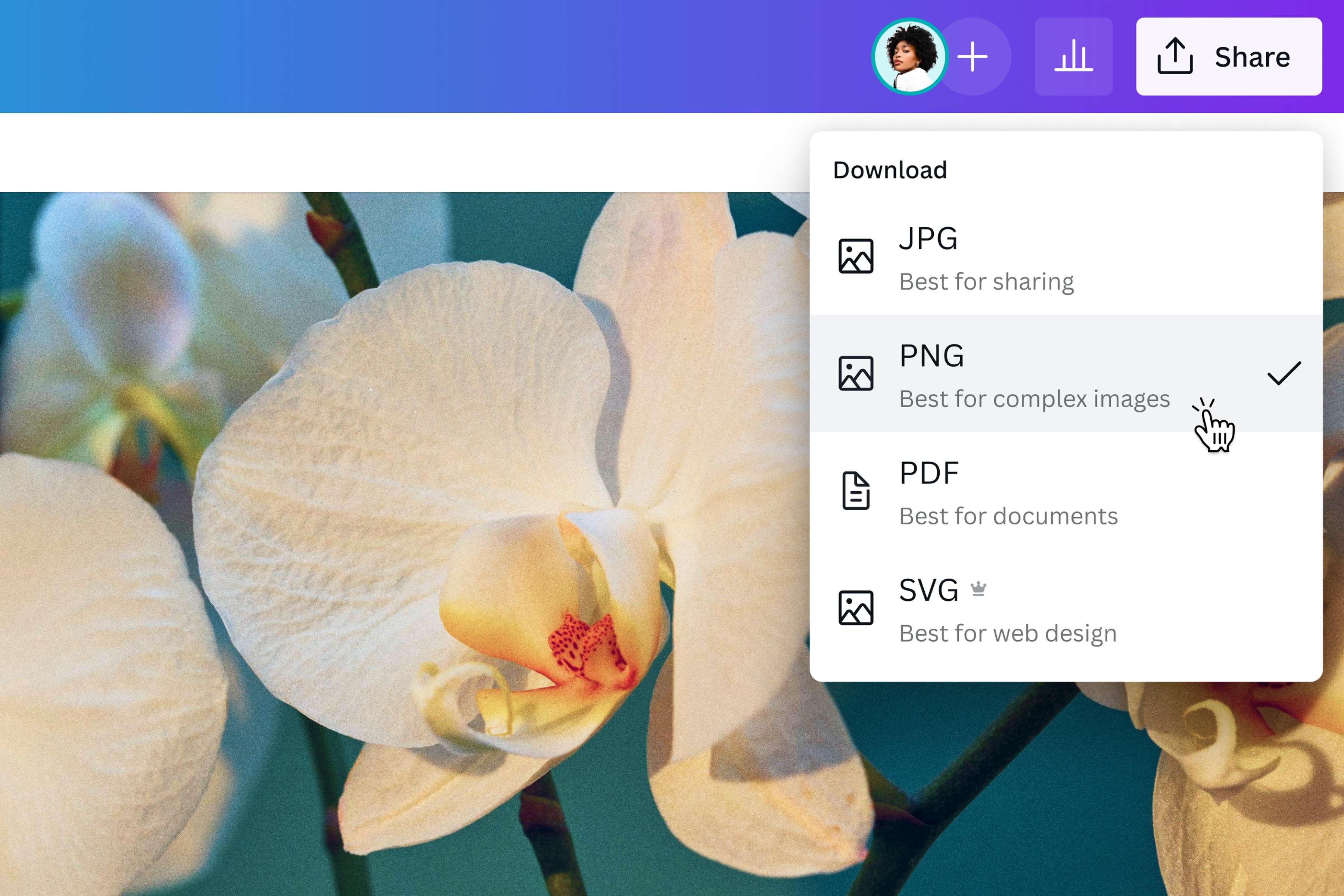
Finally, convert from JPG to PNG for free by downloading your design as a PNG image.
Get crisp, high-resolution images
Turn your JPG images to PNG to keep your photo's last color, line, and minute detail in their original quality. With Canva's JPG to PNG tool or PNG maker, have confidence that your work will stay the same, no matter how many times you edit or save the file. Enjoy lossless photo resolution that remains consistently high-res across any page, device, or project.
Give your photos a creative flair
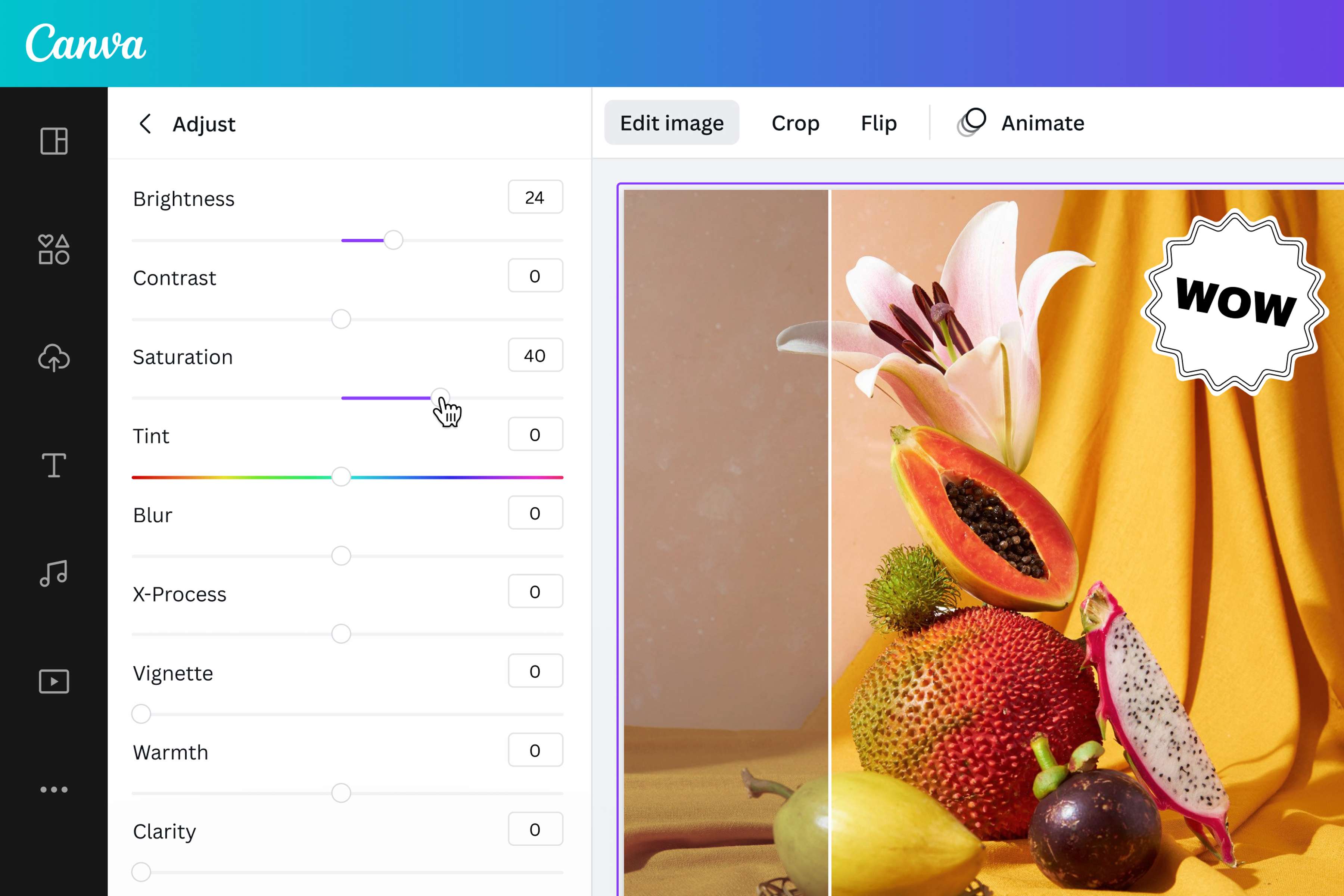
Do more than just convert JPG to PNG or Image translate. Take your content to the next level with Canva's impressive slew of features. Resize or adjust your image to fit every online platform. Apply stunning filters to create wow-worthy photos, or add text in stylish fonts to tell a better story. You can also explore our media library to find icons, illustrations, and other graphic elements to enhance your design. With Canva's powerful photo editor, you have all the tools to transform ordinary images into instant works of art.
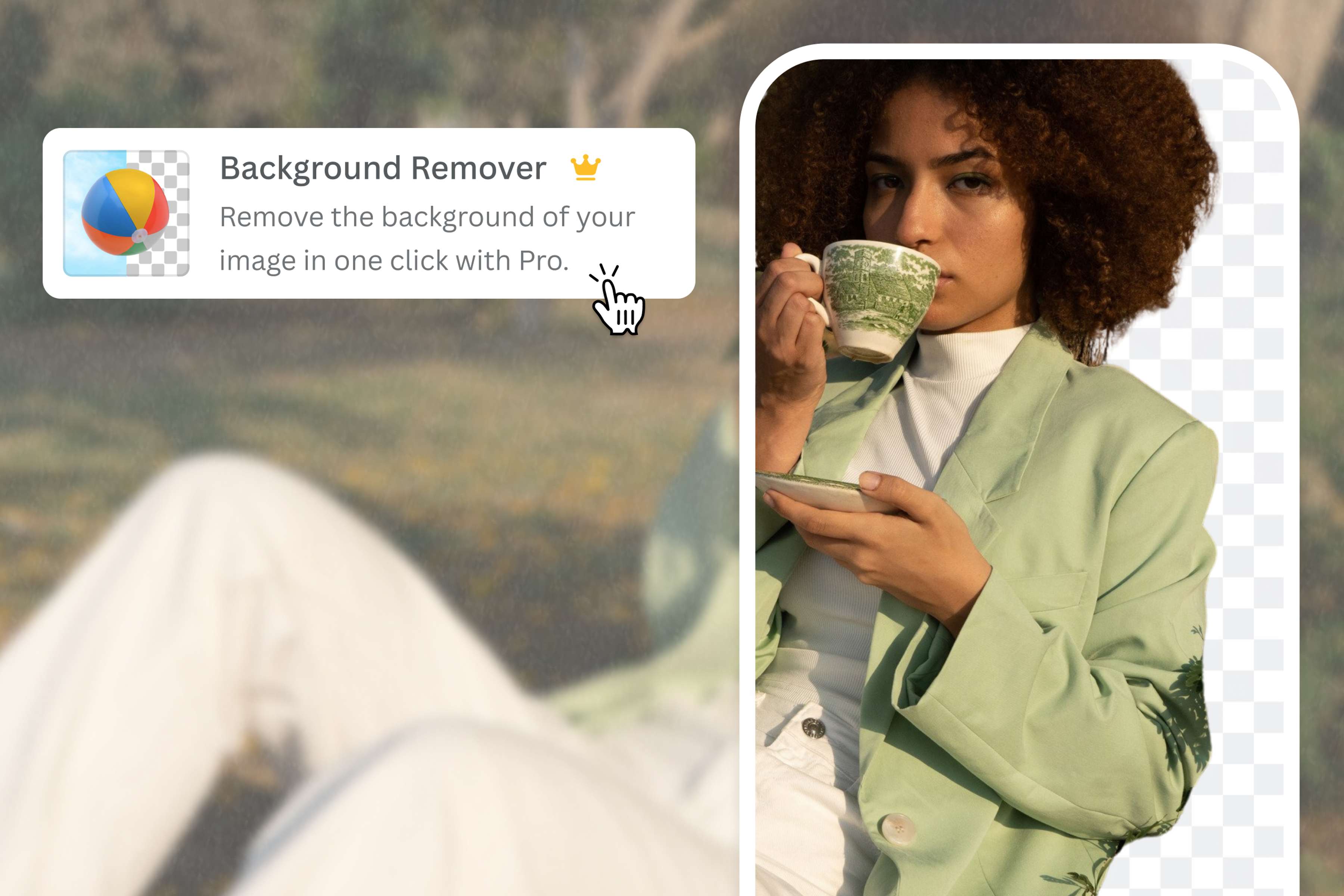
Take out the clutter
Remove distracting backgrounds and keep only what matters. Canva's Background Remover lets you take out your image's background in one effortless click—like magic! Now you can achieve exactly the look you're after. Replace the background with a solid white color to get the perfect headshot, highlight your subject to create stand-out product photos, remove the background from a logo, or simply save your new background-less JPG to a transparent PNG to enjoy greater flexibility. This feature is only available on Canva Pro, and well worth it. Canva also offers a Video Background Remover for your motion content.
How to change JPG to PNG
Launch Canva
Open Canva on your browser or app to access our JPG to PNG tool. Start your design project from scratch or with a pre-made template.Upload your JPG image
Upload your JPG file by selecting it from your device or using the drag-and-drop method. Your image should be uploaded to the editor and ready for download in your desired format.Edit and customize
Modify your image as much or as little as you like with Canva’s easy-to-use editing tools. Apply cool photo effects(opens in a new tab or window) to set the mood, add borders(opens in a new tab or window) and frames for a more polished look, or explore our media library for icons, vectors, and design elements that can dramatically improve your image.Convert JPG to PNG online
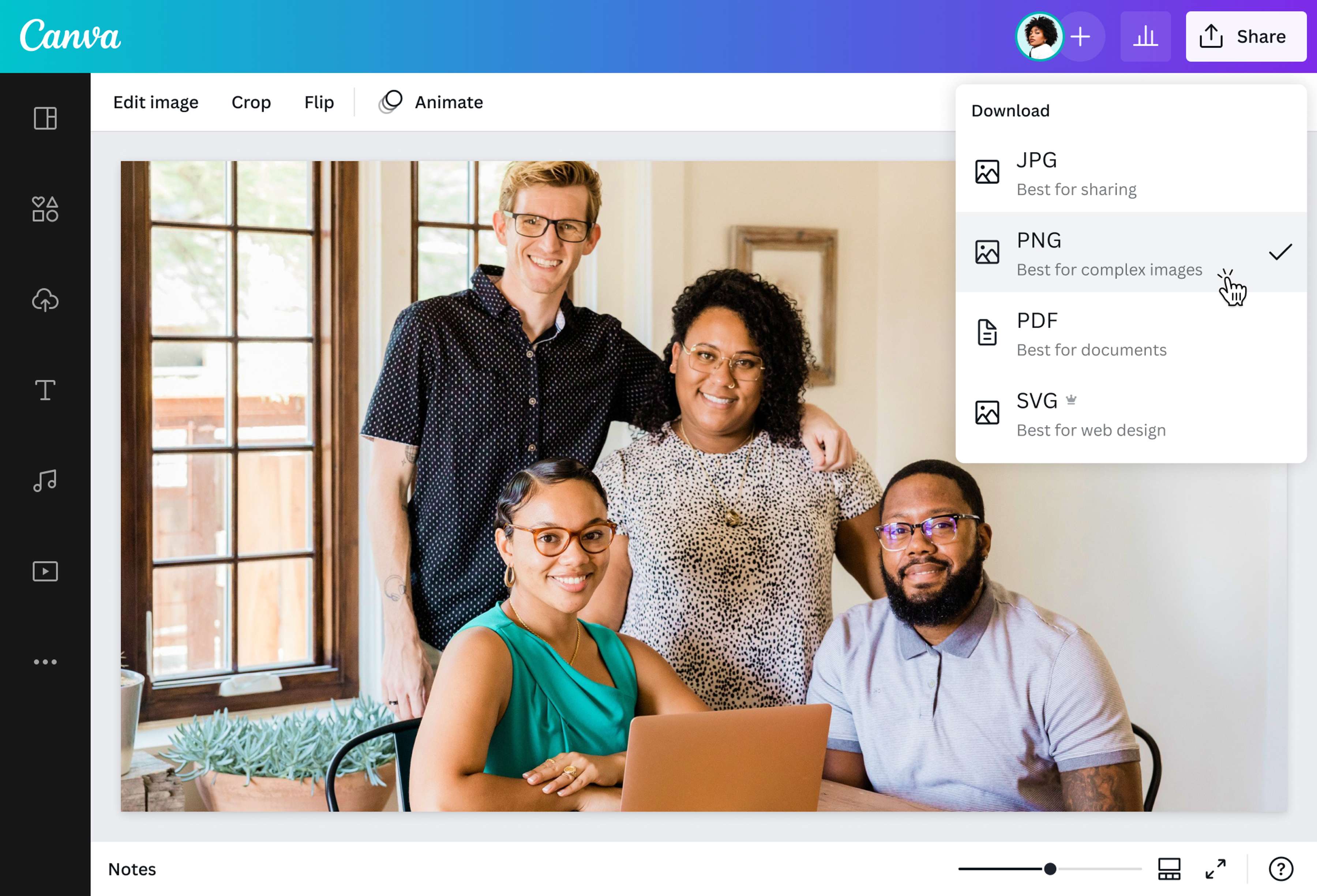
Once satisfied with your edits, click "Share" then "Download" in the upper right corner of the editor. Select PNG as the file type before downloading your image and saving it as a high-quality PNG.Share your PNG image
Share your newly converted PNG image in a number of ways. Add it to your Canva Docs or presentation, publish it as a drawing(opens in a new tab or window), illustration, or text image, or save it to your device for future edits without worrying about losing image quality.
Frequently asked questions
- JPG was designed for efficiency, while PNG was for quality. Saving a photo in JPG format tells your computer to compress it into the smallest size possible by keeping only the most important data about your images. This is great when you don't need pictures to be super crisp (like with real-world photographs) or if storage is an issue. Meanwhile, PNG saves all data about your image down to the last pixel. PNG images are thereby sharper, but the file sizes can be bigger.