Free JPEG to JPG converter
Convert your JPEG to JPG and get your image in the most widely used file format. Easily switch file extensions and use your photo in any creative project fast.
or drop it here
Learn about Canva’s upload formats and requirements. See how we use your content in our Privacy Policy.
Try these image converter tools
Edit and convert images and more. All the photo editing tools you need!
How to convert JPEG to JPG
1
Upload your image
Select the “Upload your image” button or easily drag and drop your files into the section.
2
Edit your design
Make some quick touch-ups on your image using our beginner-friendly editor.
3
Download your design
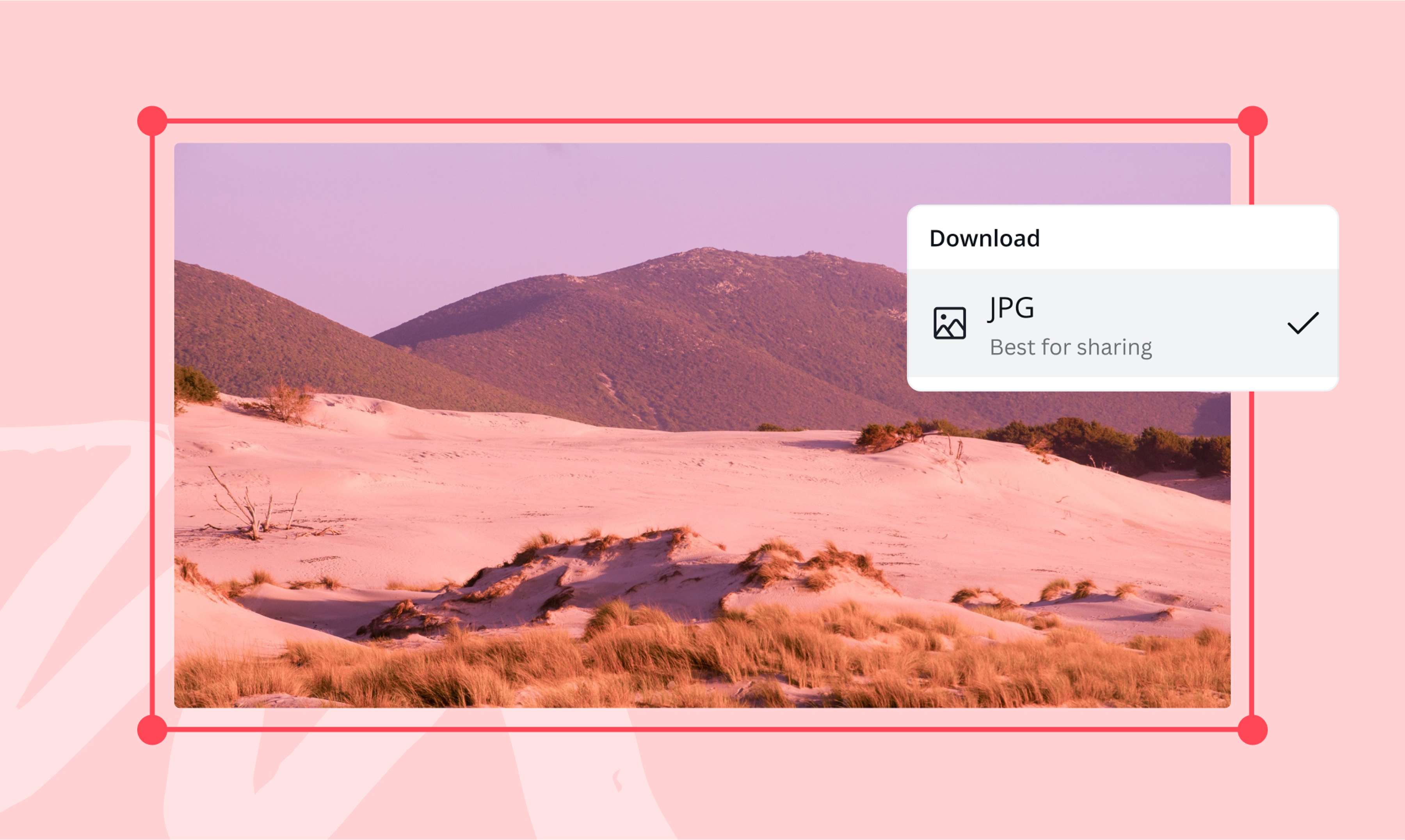
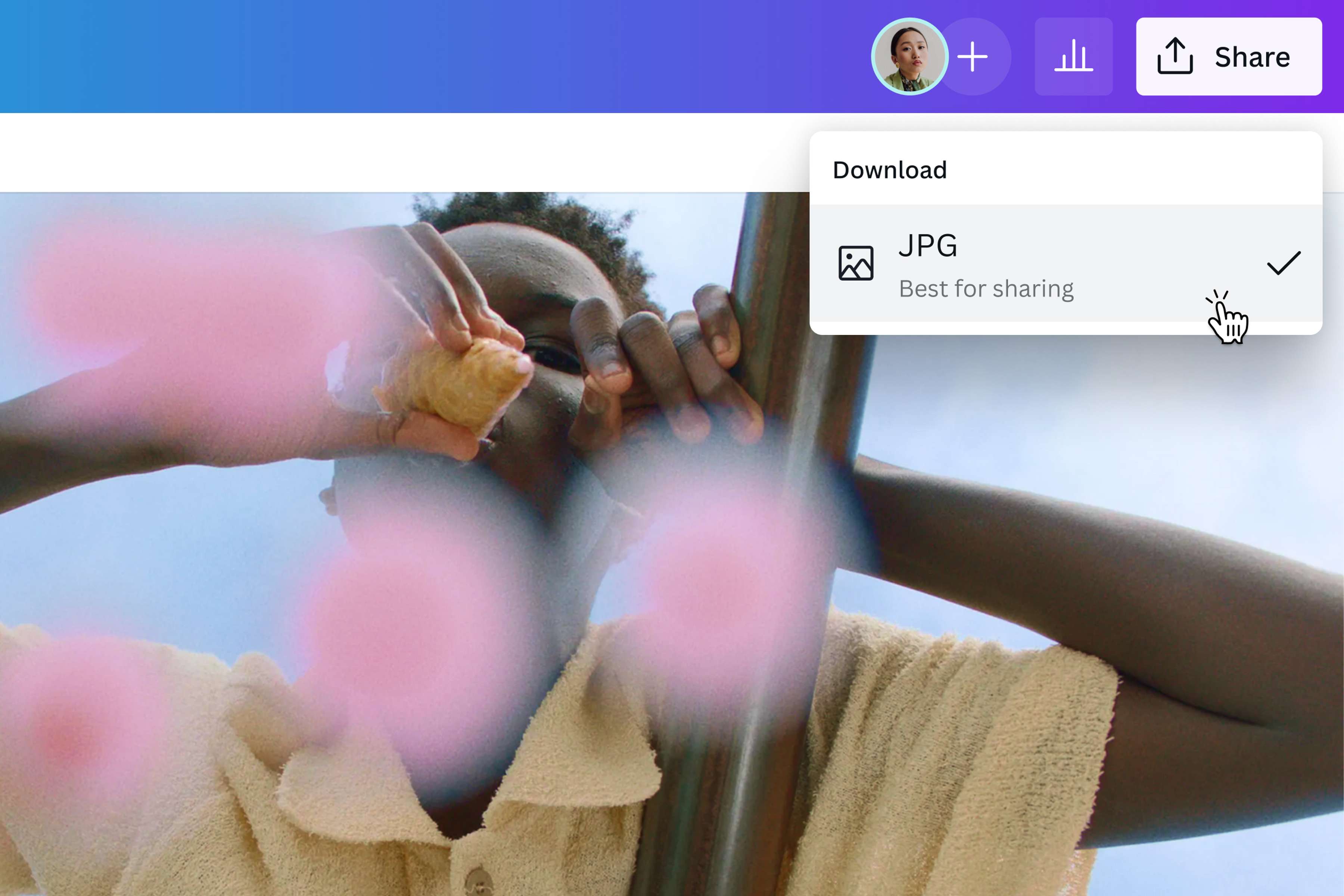
Finally, convert from JPEG to JPG for free by downloading your design as a JPG image.
Get the right file extension for your image
Make your creative process as smooth as possible. Let nothing—not even that confusing file extension—get in the way of your flow. With our online JPEG to JPG converter or image translator you can easily save and download your image in the most usable digital format, JPG.
Quickly edit and enhance your JPEG
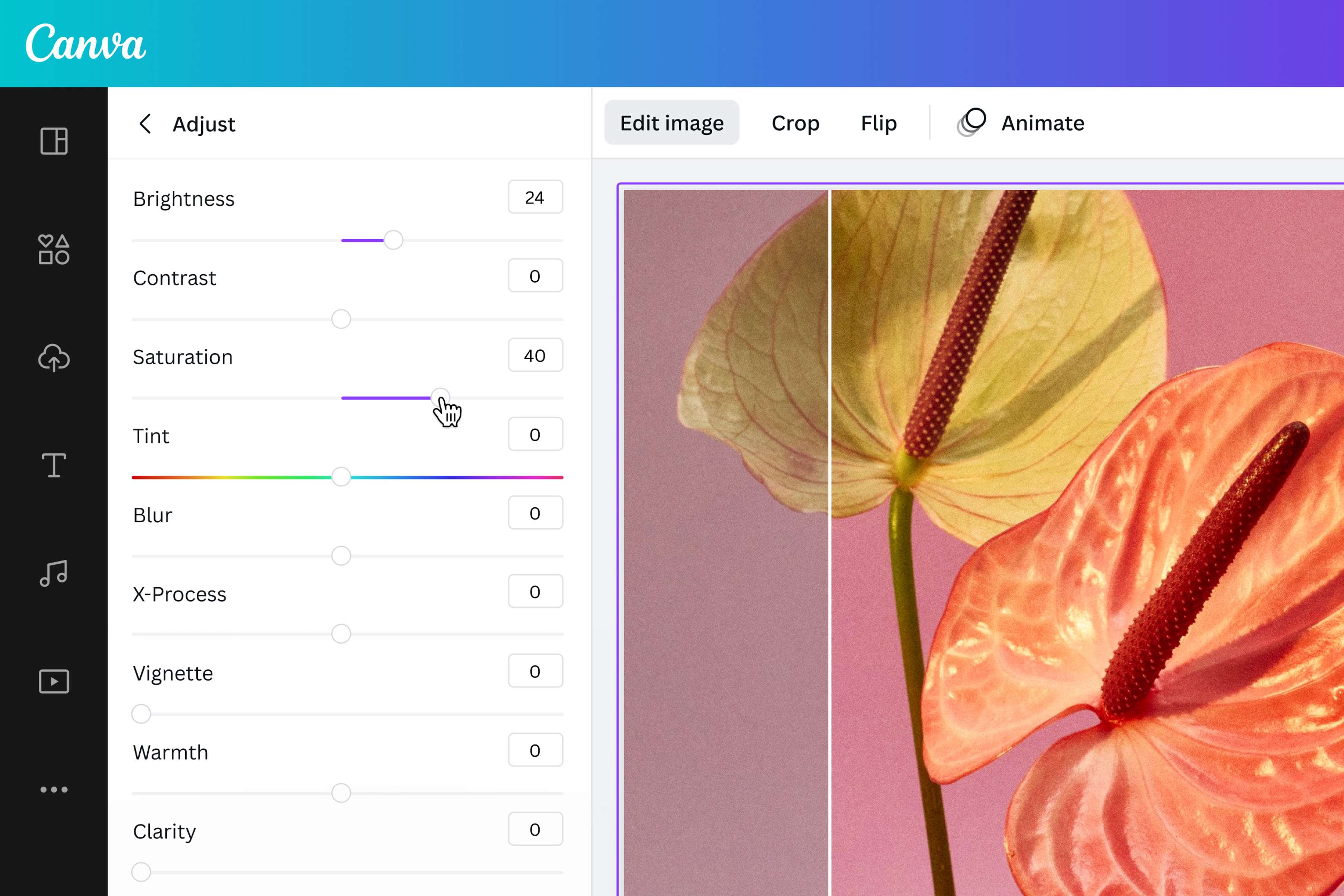
No need to switch from one app to another. Before you change your JPEG file to JPG, edit the photo using our our Free HD Photo Converter Online, and free online photo editor. With our beginner-friendly tools, you can easily crop your photo, rotate, resize, cut out images, apply photo effects, and adjust its clarity, blur, brightness, saturation, and more. Get it as close as you can get to perfection.
Use your image on any digital project
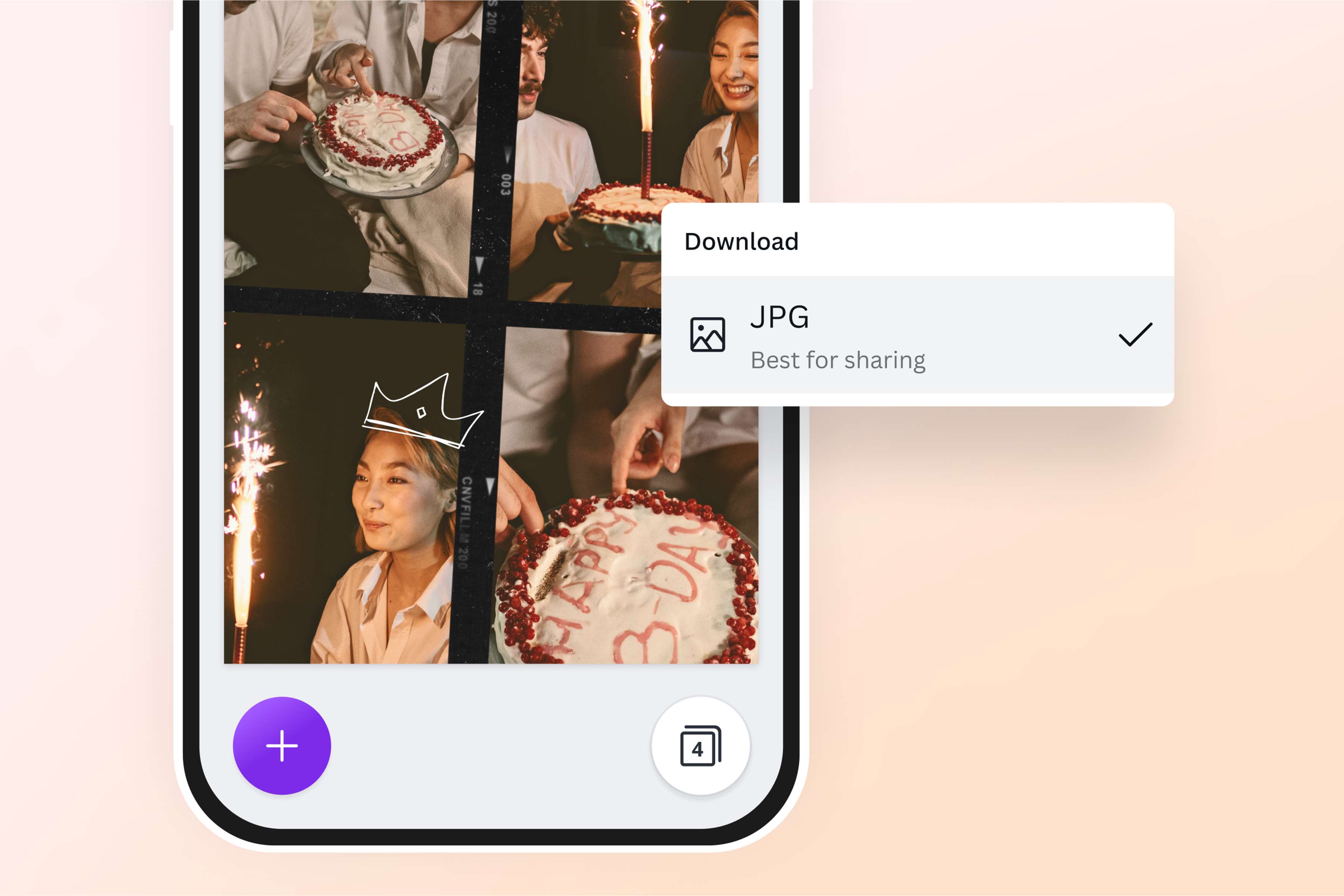
Converting your JPEG to JPG means you can now use it for any creative project—all without leaving our online editor. Get your snapshots social media-ready by applying fun filters or sprinkling them with graphic elements from our free media library. Once converted, you can also insert your high-quality JPGs on brochures, posters, photo books, and other printed materials you can design on Canva.
How to convert JPEG to JPG
Launch Canva
To access our JPEG to JPG converter, open Canva via the app or web browser.Upload your JPEG
Upload your JPEG file or drag and drop it onto a project. Your image should be uploaded to the editor and ready for JPG conversion. If you want to convert multiple files, drag and drop each JPEG image onto a separate page.Edit and personalize
You can enhance your photo(opens in a new tab or window) using our free photo editor(opens in a new tab or window). Adjust the saturation, brightness, and more using the sliders. Apply photo effects or filters, or even add glasses to your photo(opens in a new tab or window). You can also crop your image(opens in a new tab or window), insert graphic design elements, or add captions(opens in a new tab or window) using the Text tool.Convert .jpeg to .jpg
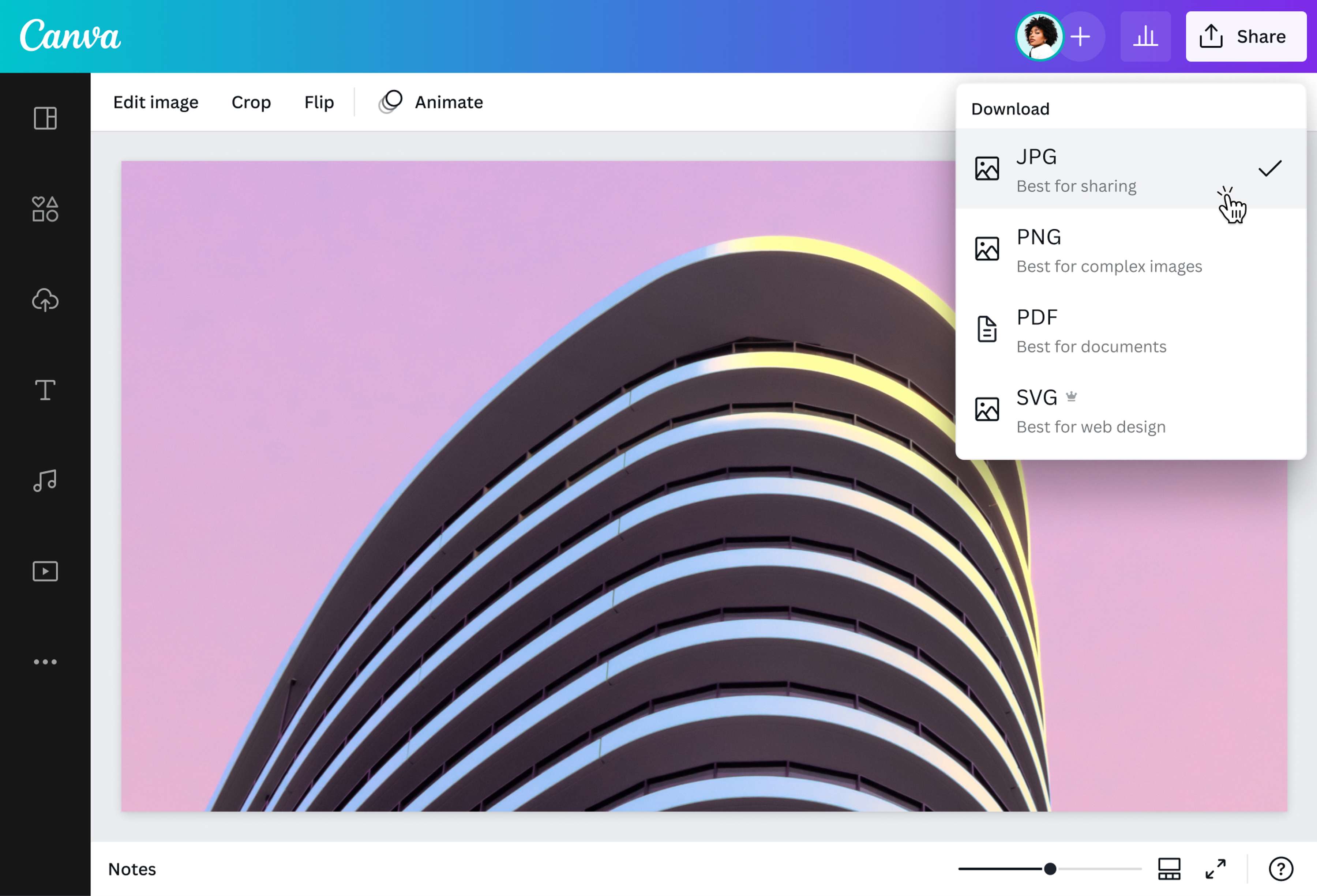
Ready to download your image? Click Download, choose JPG as your final file format, and get your image with the .jpg extension.Share, use, or download your JPG
Use your freshly enhanced JPG file on any Canva project: add it to your social media posts, publish it on your website, or use it for marketing materials like brochures, flyers, and posters.
Frequently asked questions
JPG and JPEG are acronyms that both stand for Joint Photographic Experts Group. There's technically no difference between the two, except for the file extension (image.jpeg vs. image.jpg). But by using our JPEG to JPG Converter, you can easily convert a batch of .jpeg images to .jpg files. Plus, you can spruce them up using our photo editor or convert JPEG to PDF online.