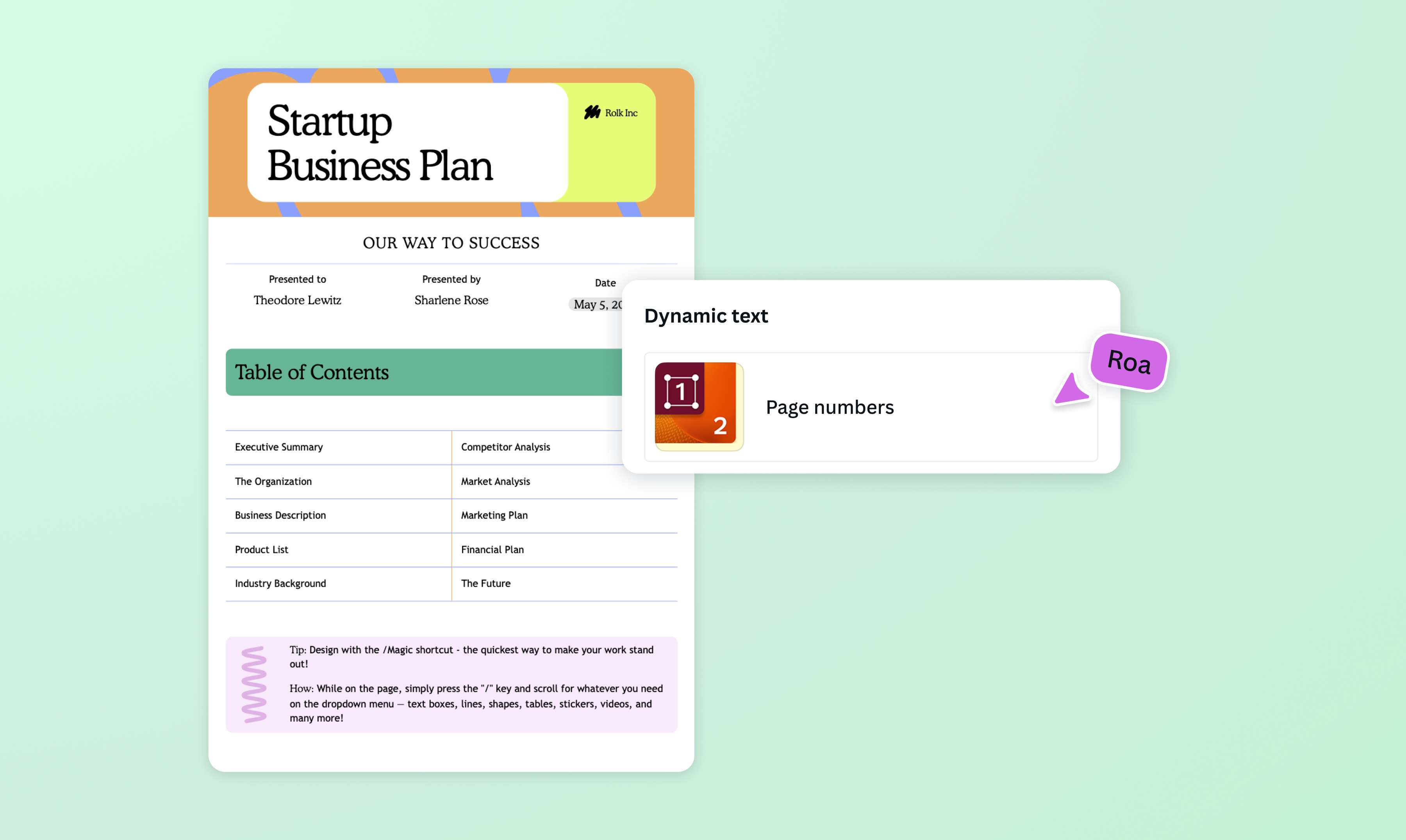

Add page numbers to PDFs with ease
Effortlessly arrange any document with Canva’s dynamic page numbering. Add PDF page numbers and enhance readability in a snap.
or drop it here
Learn about Canva’s upload formats and requirements. See how we use your content in our Privacy Policy.
Try these document editing tools
Edit, organize, translate PDFs and more. All the PDF editing tools you need!
How to add page numbers to a PDF
1
Upload your PDF
Select the “Upload your file” button or easily drag and drop your file into the section.
2
Edit your file
Add page numbers to your PDF using our beginner-friendly editor.
3
Download your file
Finally, download your file as a new PDF document.
Quickly add page numbers to your PDF
Say goodbye to lengthy, unorganized files. Be it a thesis you’re finishing or a marketing deck you’re pitching, adding page numbers to your PDF is an easy task on Canva. Simply upload your file, and watch your PDF transform in a few clicks—no complex tools or pricey software needed.
Need a last-second fix? Canva’s free PDF Editor lets you merge files or add extra pages. Your page numbers automatically get updated, so everything stays in sequence.

Create professional and on-brand files
For marketing and sales teams who need to cite specific pages in long PDFs, numbered documents offer instant clarity and quick referencing.
Plus, you can do more than just add PDF page numbers on Canva. Set up your Brand Kit (Canva Pro) to use identifiable fonts, colors, and elements in your file. Explore our templates library for design inspiration. You can also try our AI-powered tools like Magic Write to come up with witty copy, or Magic Media to generate striking visuals.

Make easy-to-follow learning materials
Adding page numbers is essential for lesson plans, worksheets, and handouts, as it allows teachers and students to flip to the right page without losing focus. Likewise, paginated onboarding handbooks, product manuals, and safety guides help employees find the information they need fast.
Once you’re done adding page numbers to your PDF, you can even opt to use our PDF Translator to make learning materials in different languages. With Canva, creating informative and organized PDFs is easy.

Collaborate on your PDF
You don’t have to add page numbers to a PDF or work on your design alone. Simply invite others to collaborate through a link or email. Tag teammates to assign tasks, share ideas by leaving comments, and work as one to create the best version of your PDF. Once you’re done, export your file to share it online or print it for free.
How to add page numbers to a PDF
Open Canva and upload your PDF
Log into your Canva account. Click the Upload your file button to import your PDF, or drag and drop the file directly into the canvas.Insert automatic page numbers
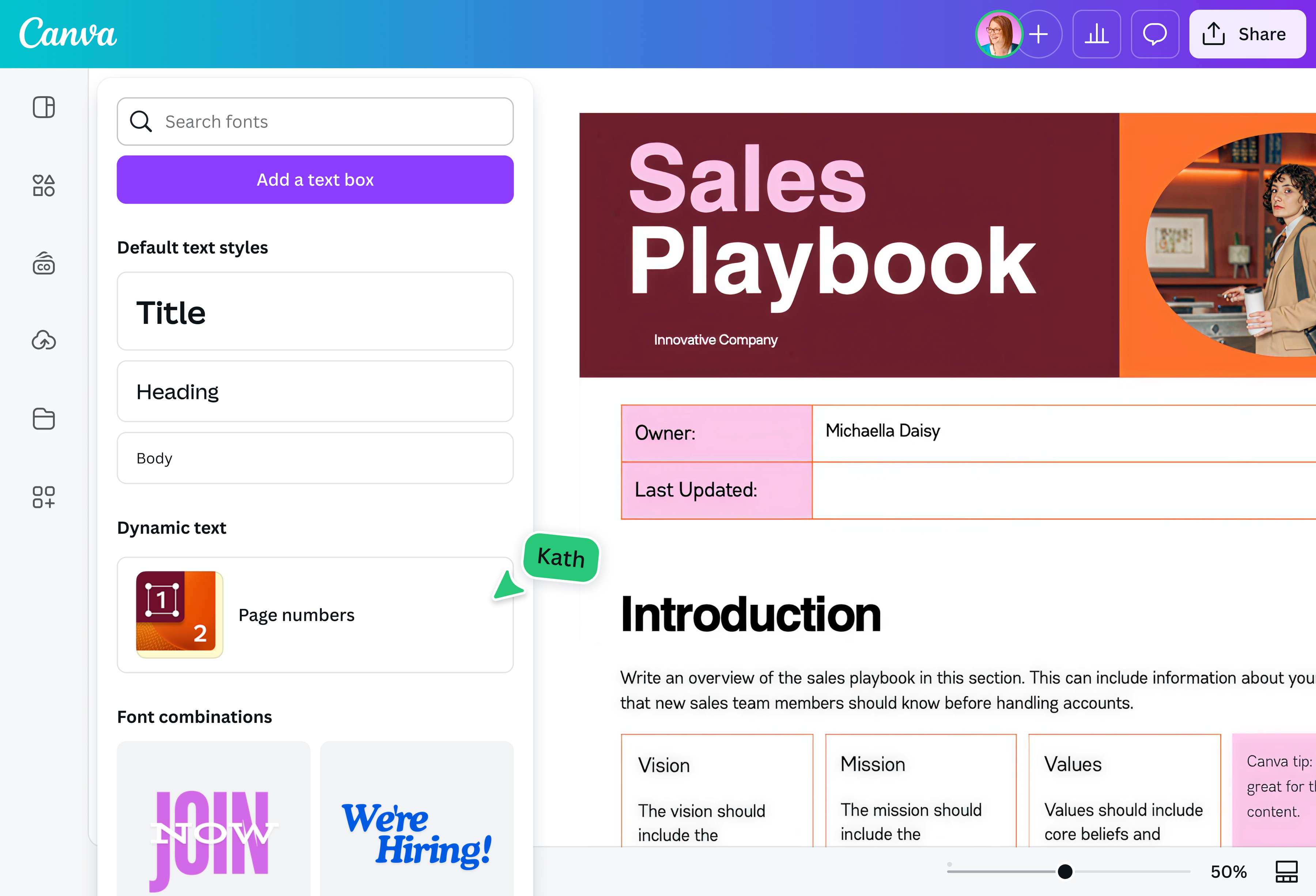
Click Text on the editor side panel. Under Dynamic text , select Page numbers. Drag the number box to your desired spot. Then, tweak the font, color, or size.Format your page numbers
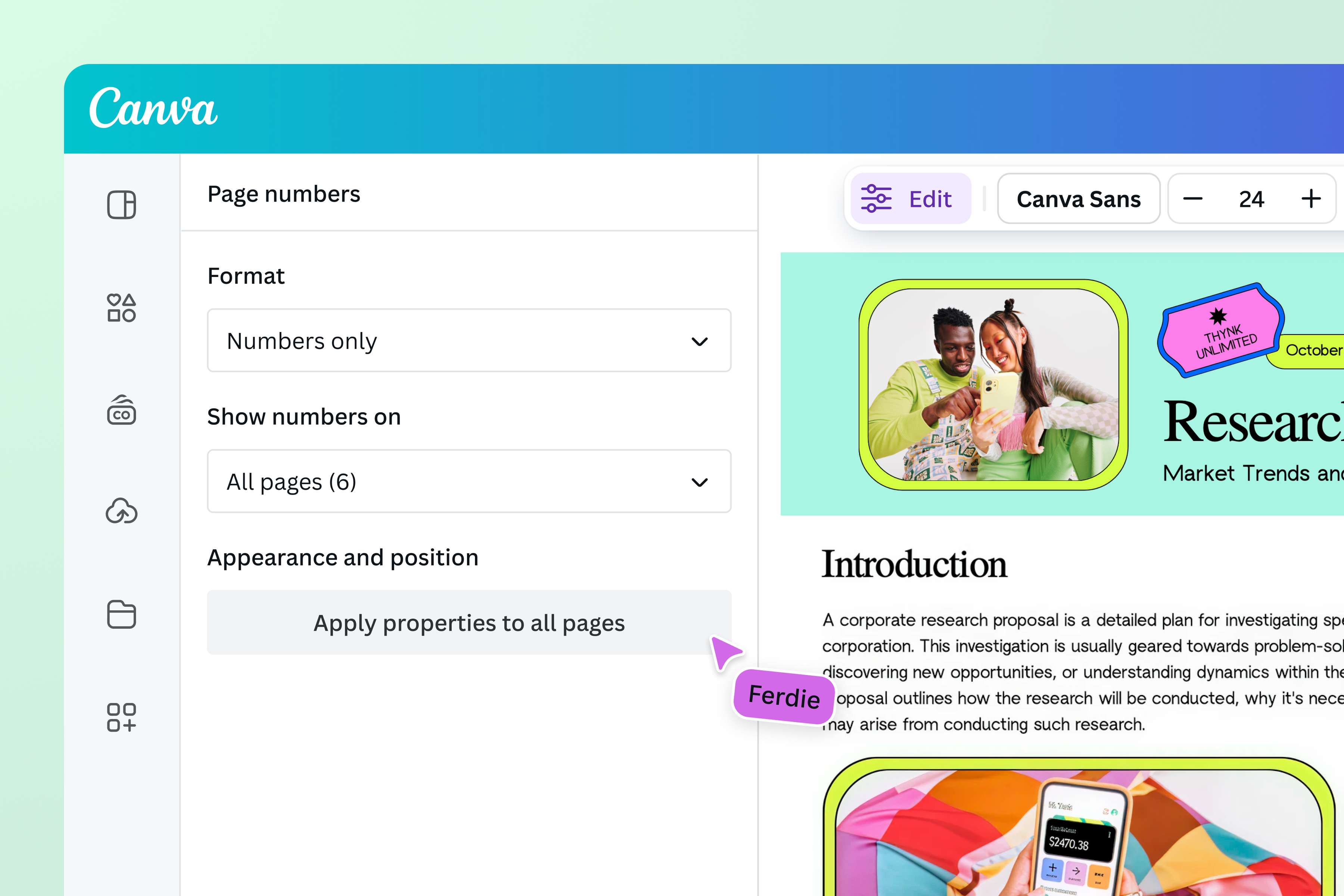
From the dropdown, choose a format (Numbers only, Page + number, or Page X of Y) and decide which pages should show the numbers. Then, click Apply properties to all pages.Customize your design
Personalize your PDF using Canva’s intuitive design tools. Update elements that are already present, or add in new photos, graphics, and text.Share your PDF
Once you’re satisfied with your file, click the Share button. Download, present, publish, or email your PDF in just a few clicks.
Frequently asked questions
- Add page numbers to a PDF for free by using online tools or visual editors. Our free online PDF editor allows you to add page numbers to an existing PDF in under a minute. Upload a PDF of up to 300 pages or a maximum size of 100 MB at no extra cost. Aside from customizing the page numbers, you can modify the text or images before you export the PDF. Download or share the newly paginated file in standard PDF size. If needed, upgrade to Pro for high-resolution, print-ready files.