Free PDF Page Remover
or drop it here
Learn about Canva’s upload formats and requirements. See how we use your content in our Privacy Policy.
Delete pages from your PDF quickly with our free, online PDF page deleter. Remove outdated, unnecessary, or blank PDF pages to keep your files precise, secure, and updated.
Try these document editing tools
Edit, convert, translate PDFs and more. All the PDF editing tools you need!
How to remove pages from PDF
1
Upload your PDF
Select the “Upload your file” button or easily drag and drop your file into the section
2
Edit your file
Delete pages from your PDF file using our beginner-friendly editor.
3
Download your file
Finally, download your file as a a new PDF document.
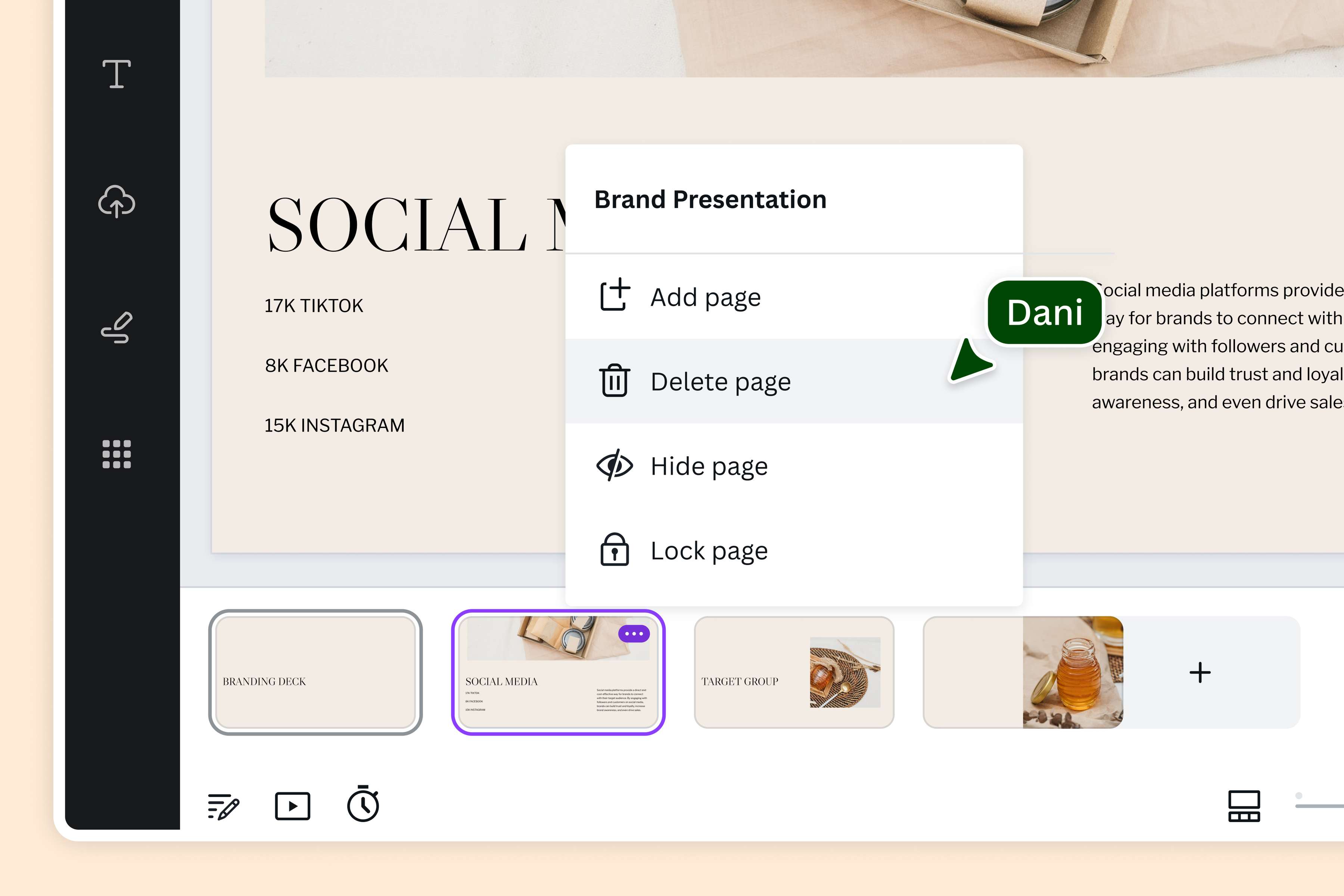
Secure and easy tool to delete pages from PDF
No need for complicated software when you have Canva’s free PDF page remover. Just upload your file, and you can precisely delete one or more pages from the document. Remove blank, outdated, irrelevant, or confidential pages, and download it as a fresh and updated PDF.
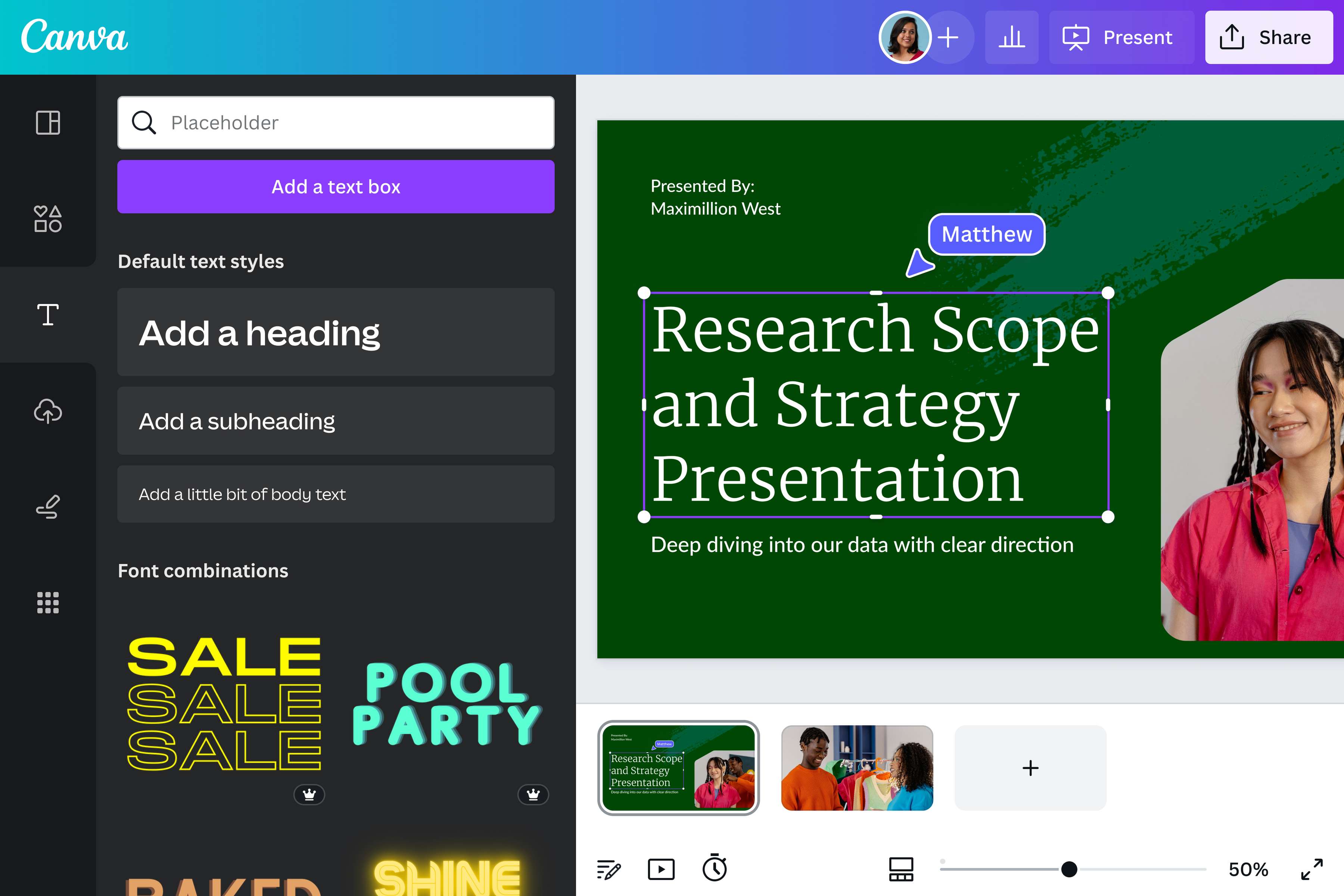
Make your PDF more visually compelling
Apart from deleting pages, you can also edit your PDF. The built-in PDF editor breaks the file into editable elements, so you can customize every page to your readers. Revise the text, insert new images, add illustrations, or even reorganize the pages. Plus, you have AI tools like Magic Write to help you get your thoughts on paper.
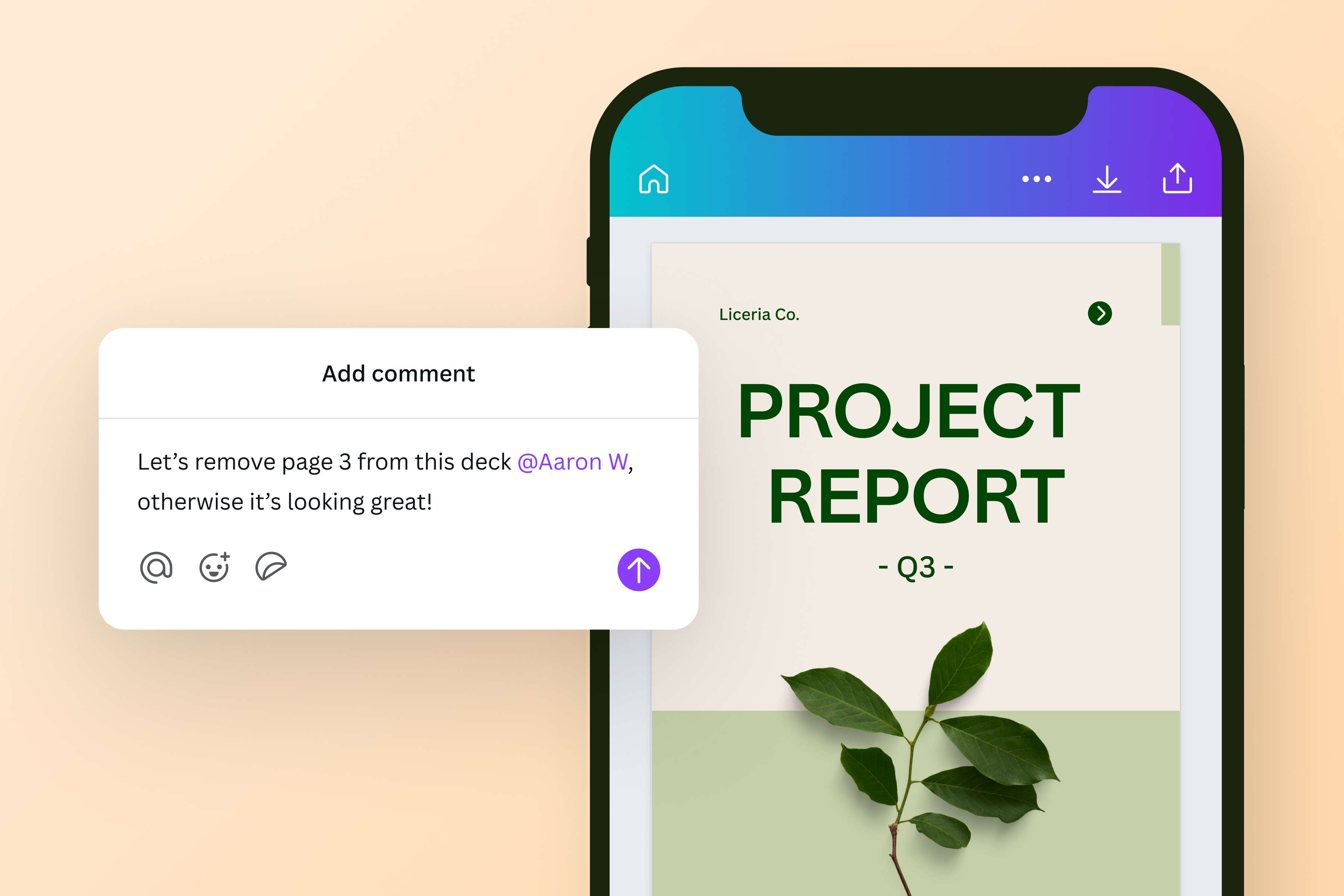
Collaborate on your PDF files
Invite your team to review and remove PDF pages, too. Encourage them to leave feedback on the document or let them revise the file. You can even sign PDFs when documents need approval. PDFs can be edited on any device, anytime and anywhere in the world, so it’s perfect for files that require collaboration. Multi-layer reviews are a walk in the park.
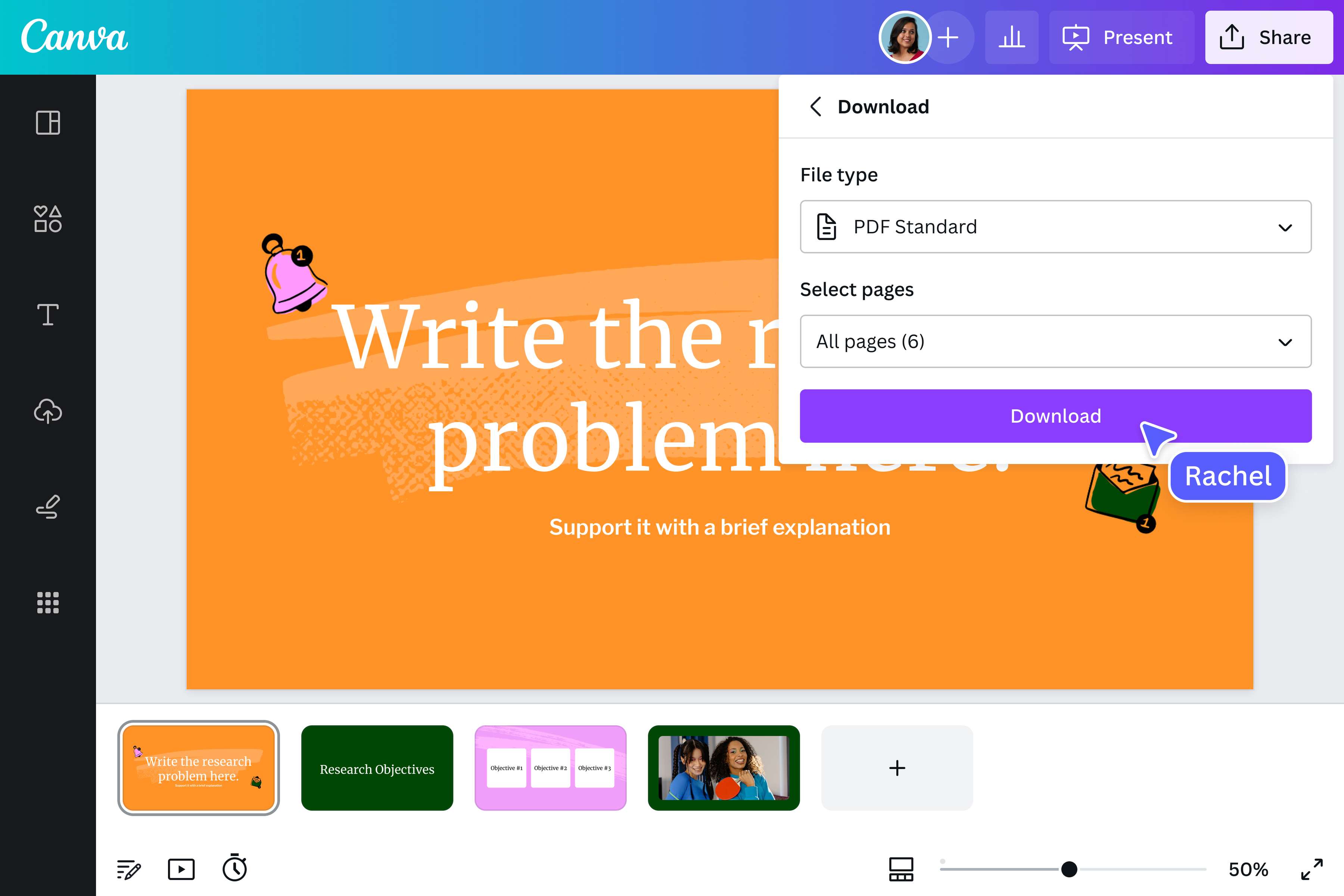
Download and share easily
Downloading and sharing your updated PDF is a breeze. After removing unnecessary pages, save the PDF as a new file, ready to be printed for marketing, fundraisers, reports, schoolwork, and more. Or share your new PDF via email or social media channels without leaving Canva.
How to delete pages from PDF
Open Canva
Launch Canva on your web browser or app to access our online PDF page remover tool.Upload your PDF
Upload your PDF file or drag and drop it onto the page. Canva automatically transforms your PDF into editable elements.Delete pages from your PDF
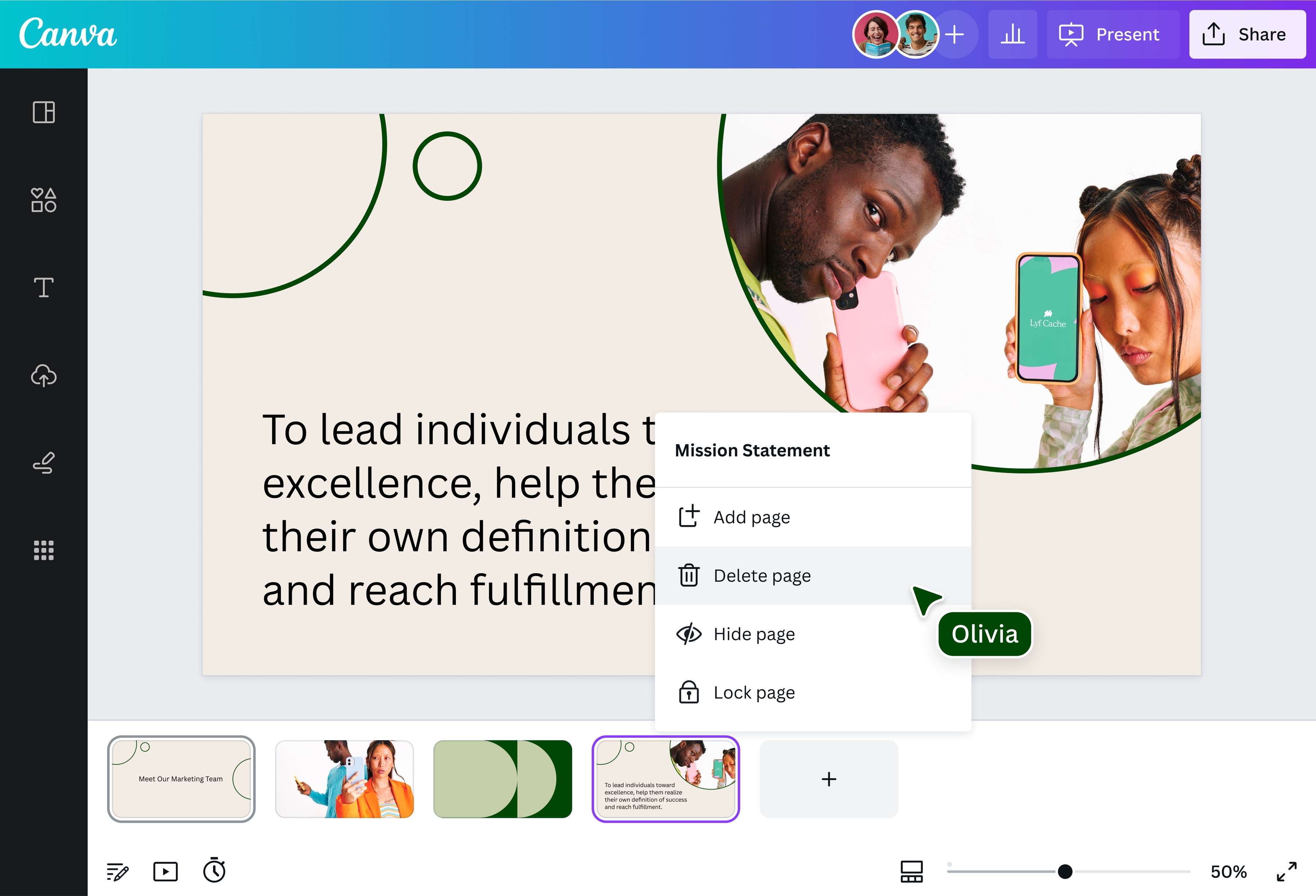
Identify the page or pages you’ll remove from the PDF. Click the trash can icon on the corner of the page to delete. Invite teammates to work on the file, too.Edit your PDF
Customize your PDF for the readers. You can edit the text, add graphs and tables, insert visual elements from our free media library, and change the order of the pages.Download and share
Download and share your new PDF file. Save the document as a PDF Print for the best print quality or send your PDF to teammates via email or social media apps.
Frequently asked questions
- PDF stands for “Portable Document Format.” It’s a file format ideal for presenting documents regardless of the software, operating system, or hardware. A PDF is used to create files that can’t be easily modified, but through our PDF page remover, you can quickly delete pages from PDFs online.