Free Excel to PDF Converter
or drop it here
Learn about Canva’s upload formats and requirements. See how we use your content in our Privacy Policy.
universally viewable PDFs, so your reports, schedules, and assignments are easy to share, print, and protect.
Try these document editing tools
Edit and convert PDFs and more. All the PDF editing tools you need!
How to convert Excel to PDF
1
Upload your Excel file
Select the “Upload your file” button or easily drag and drop your files into the section.
2
Edit your design
Make some quick touch-ups on your spreadsheet using our beginner-friendly editor.
3
Download your PDF
Finally, convert from Excel for free by downloading it as a PDF file.
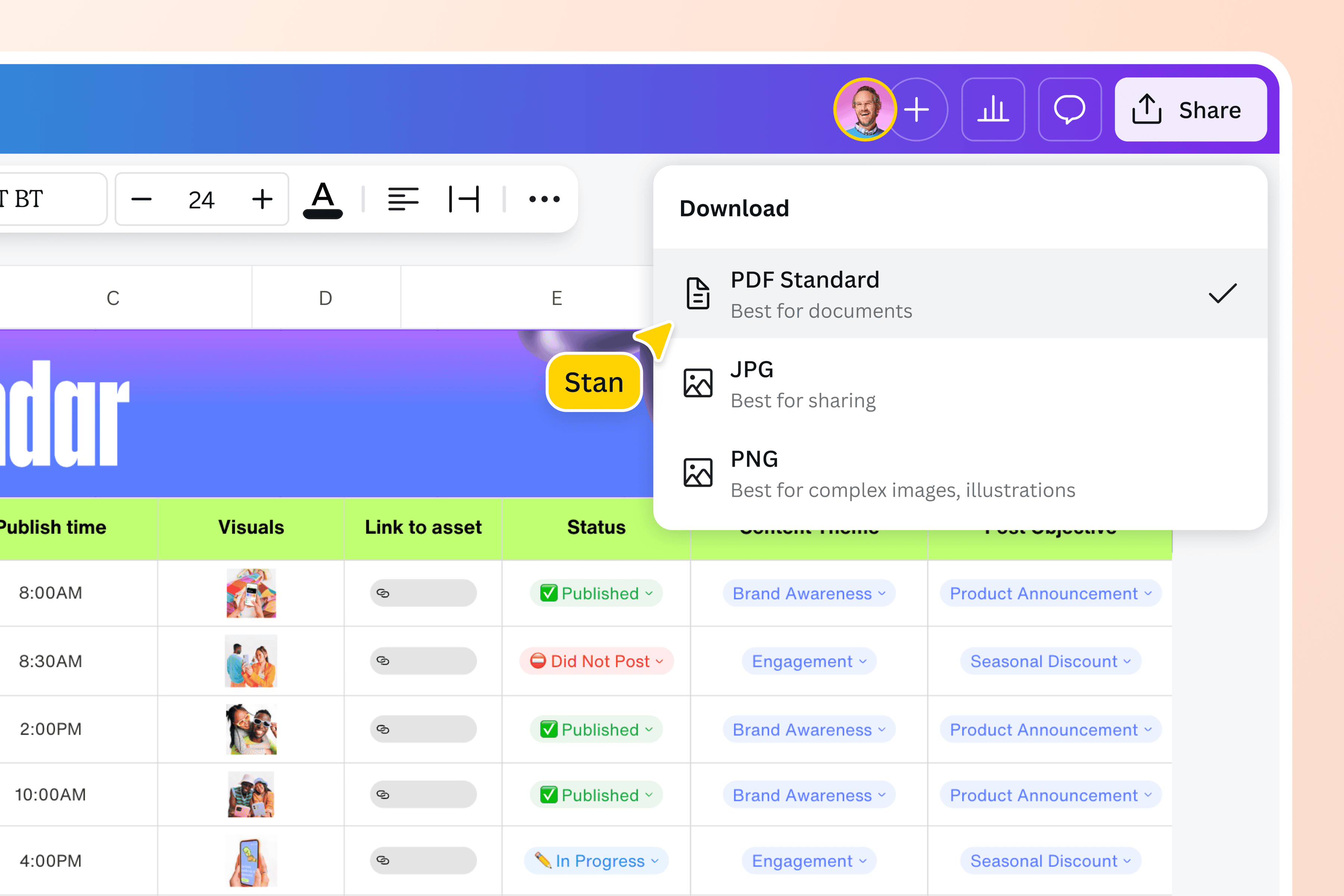
Create shareable PDFs in a flash
Turn financial reports, invoices, or schedules into polished PDFs that anyone can open. With Canva’s Excel to PDF converter online, your Sheets stay consistent across devices, even without Excel installed. Share files that are easy to view, non-editable, and always appear exactly as you designed them.
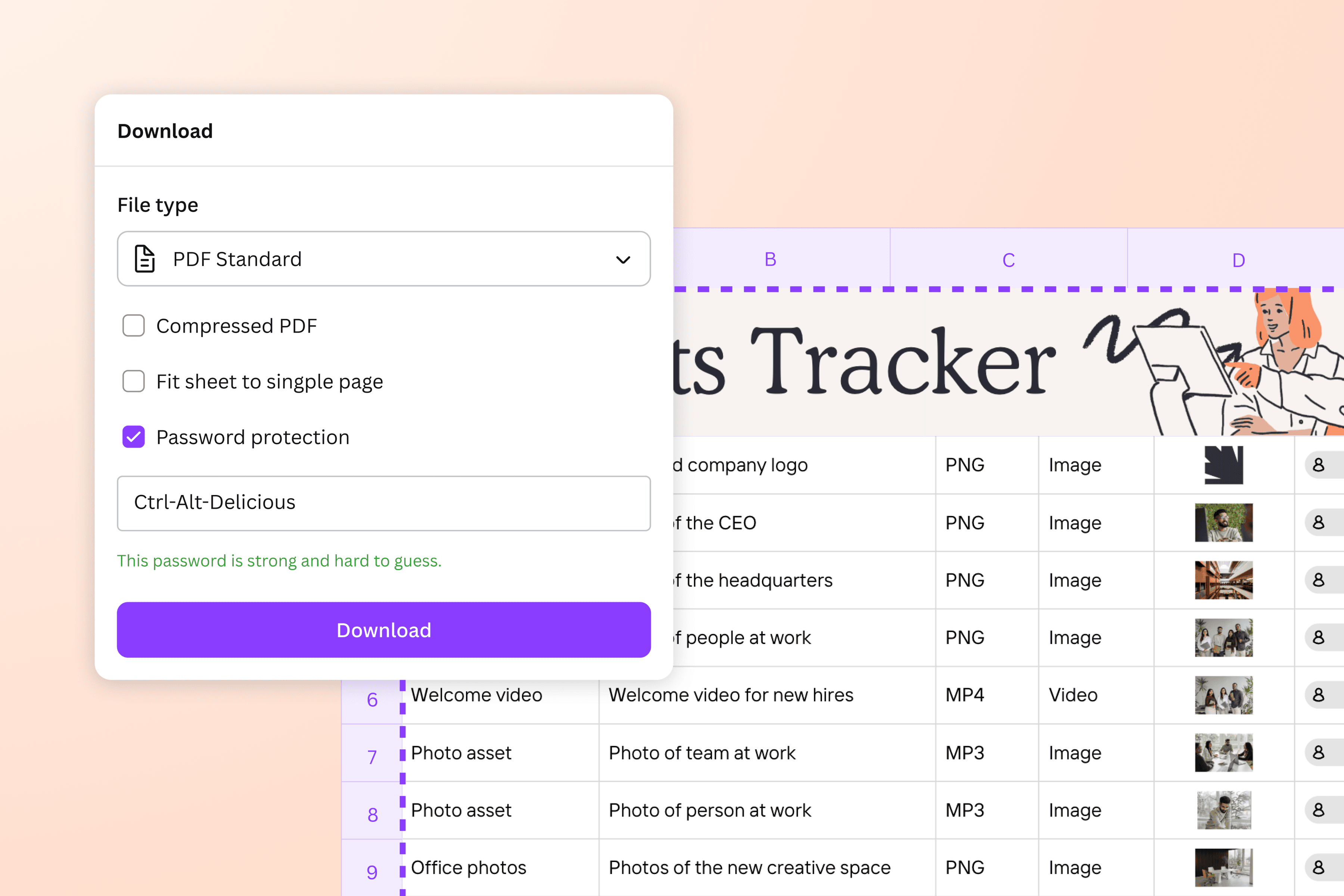
Keep your spreadsheets safe and organized
Worried about data shifting or accidental edits? PDFs lock everything in place. Canva even lets you add password protection for sensitive files. You can safely store compliance reports, invoices, or project trackers knowing they’ll stay intact and uncompromised.
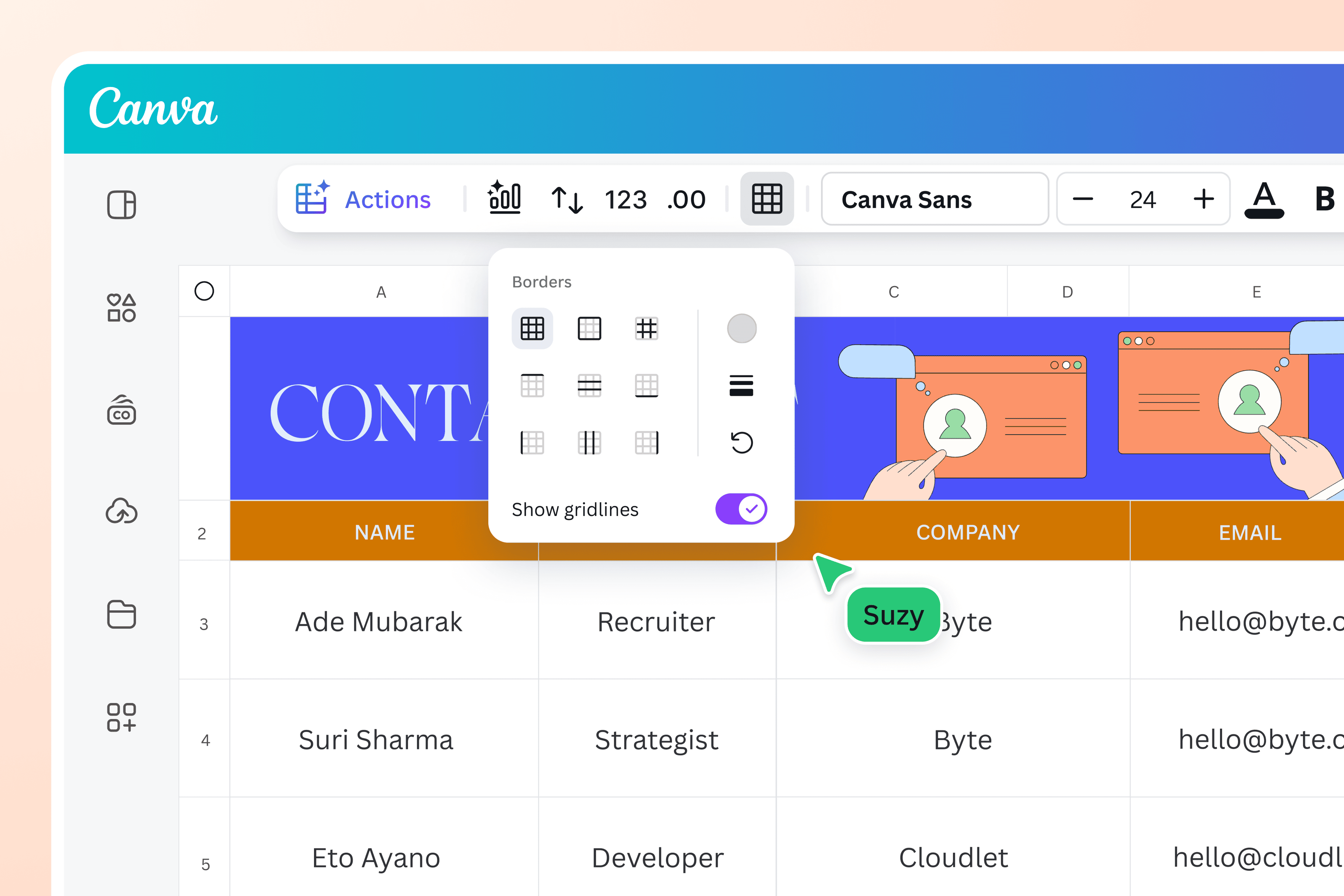
Turn Excel data into polished, print-ready files
Avoid cut-off rows or messy layouts when printing. Canva makes it easy to keep everything aligned, neat, and ready to print. Flip page orientation, tweak margins, or merge multiple tabs into one document without worrying how it’ll come out. Financial summaries, class lists, project plans, or whatever else it is you’re working on—your files will be clean and professional.
Edit, secure, and collaborate with powerful tools
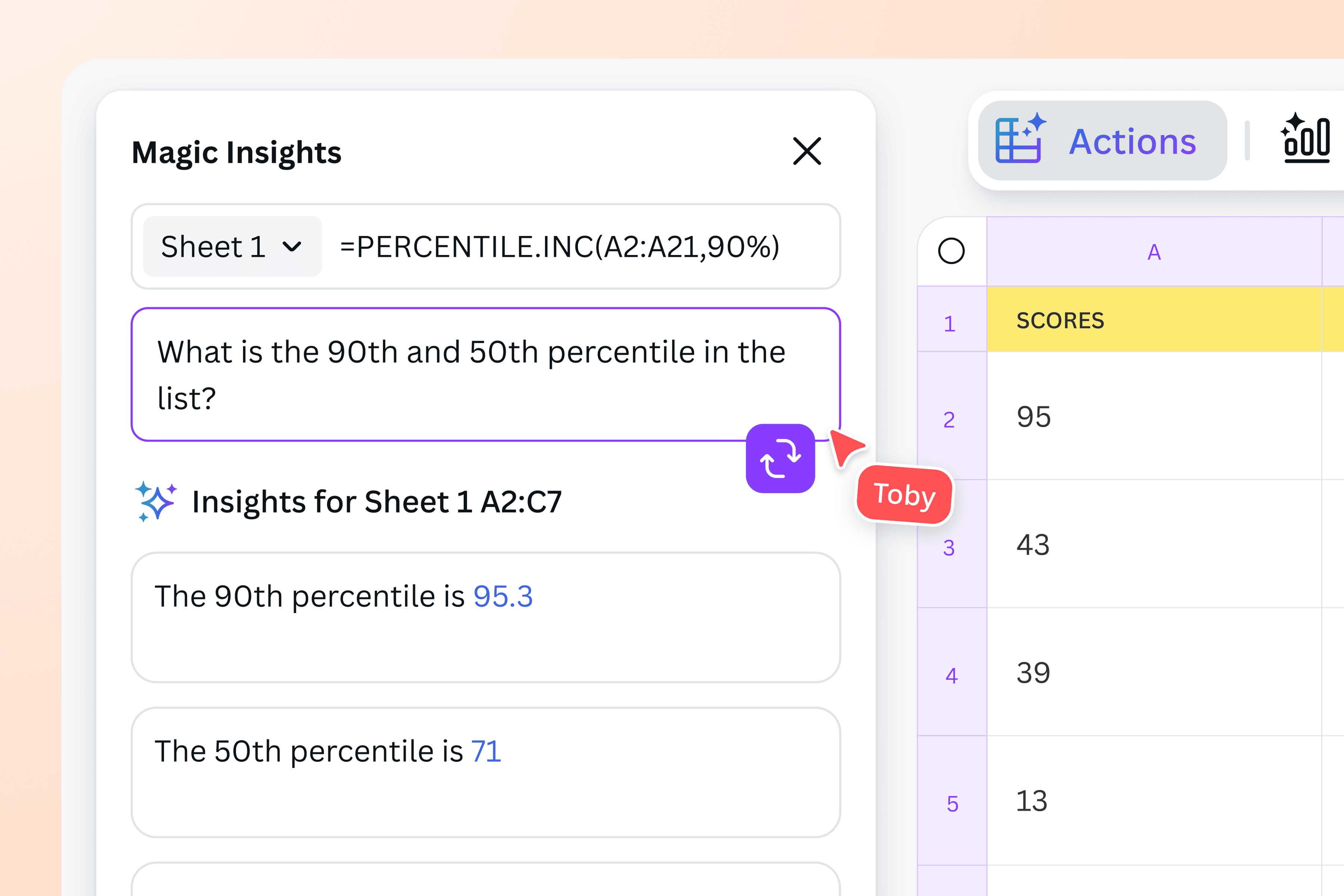
Go beyond conversion with the built-in PDF Editor. Make quick changes, merge or organize pages, or freehand sketch with the Shape Assist tools. Canva Pro users can take it further and unlock AI tools like Magic Write for summaries, Magic Charts for visuals, and Magic Insights for trends. You can even get your team in on it in real time and share with anyone, anywhere with a simple link.
How to convert Excel to PDF
Launch Canva
Open Canva on your web browser or our mobile app to access our free Excel to PDF converter.Upload your Excel file
Upload the Excel file (.xls or .xlsx) you want to convert to a PDF.Edit your spreadsheet
Before converting, you can tidy up your spreadsheet, adjust cell formatting, resize columns and rows, and more. Our editor also lets you update charts, graphs(opens in a new tab or window), and images(opens in a new tab or window).Convert Excel to PDF online
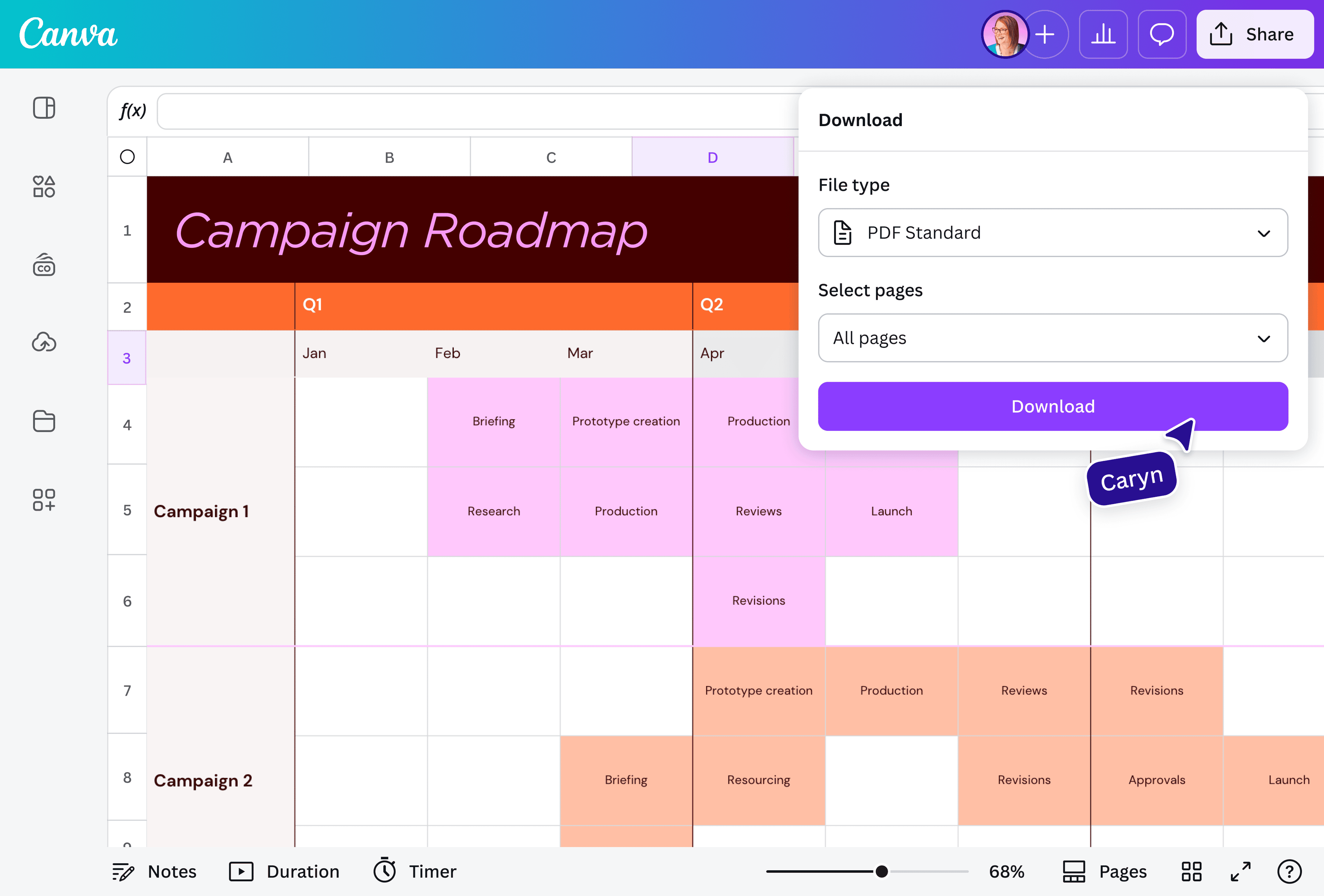
Click “Share” in the top-right corner, then select “Download”. Choose from PDF Standard or PDF Print to convert your Excel spreadsheet to a PDF.Share your PDF
Use your newly converted PDF in multiple ways. Print it out, share it by attaching it to emails, or store it on your device or the cloud.
Frequently asked questions
- Saving your Excel spreadsheet as a PDF is simpler than it sounds. Go to the File menu of your spreadsheet software, choose “Save As” or “Export”, and pick PDF as the format. A few clicks, and your workbook is ready to share or print.